Conditions
A condition defines the situation to monitor. Clicking + Add condition shows twelve condition types.
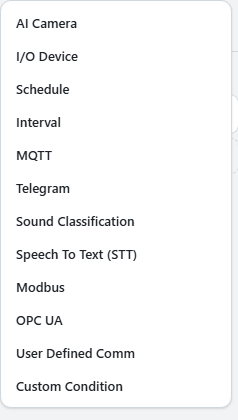
| Condition | Monitors |
|---|---|
| AI Camera | Camera video: people, faces, plates, fire, codes, text, or targets you trained. |
| Schedule | Days of the week and time ranges. |
| Interval | A repeating cycle at a fixed interval. |
| I/O Device | A sensor reading or a board input. |
| MQTT · Modbus · OPC UA · User Defined Comm | Values received from a broker, a PLC, or a custom protocol. |
| Telegram | Messages received by your bot. |
| Sound Classification | Sounds such as breaking glass, a barking dog, or an alarm. |
| Speech To Text (STT) | A spoken phrase. |
| Custom Condition | Evaluations the other types cannot express, written with blocks or a script. |
Conditions can be combined. A camera condition plus a schedule yields "a person, at night only"; a camera condition plus a sensor reading yields "a person, only while the machine is running".
Camera Condition Settings
- Camera and analysis. Select existing ones, or create them from this panel.
- Evaluation criteria. The Condition list depends on the analysis: a face analysis offers known/unknown, a plate analysis offers registered/unregistered.
- Target. Conditions that require a name show the Target value field: an object class, a person, a plate, or text.
- Confidence and duration. Set the certainty threshold and Sustained for. The remaining settings are under Advanced.
Sub conditions: evaluating only at firing time
Conditions are evaluated continuously unless configured otherwise. Changing one to a sub condition makes it evaluate once, at the instant all other conditions are met, to decide whether the actions run.
A typical use is a second camera: when the doorbell is pressed (evaluated continuously), check whether the face at the door is registered (evaluated only at that moment). The second camera does not need to be analyzed all day.
Use Change to sub condition in the row menu. The list shows a Sub badge, and there is no hold time setting, because a sub condition is evaluated once at firing time rather than monitored continuously.
A rule requires at least one ordinary condition. A rule consisting only of sub conditions can never fire, so Reflex blocks that change and explains why.
Ask LLM: re-verifying a detection with an LLM
The Ask LLM switch in the camera condition panel sits outside Advanced Options, directly below Sustained for. When enabled, Reflex captures photos at the moment the condition matches and sends them to an LLM; the actions run only if the LLM approves. Use it as an additional verification step for conditions prone to false positives.
| Field | Description |
|---|---|
| LLM connection | The LLM provider to query. Create one from this panel if none exists. |
| Query | The question sent to the LLM. Required. Example: "Is a person actually knocking on the door?" |
| Shots | Number of photos to send. 1 to 10. |
| Interval | Time between shots. 0 to 5,000 ms. |
Each rule can have at most one, and a camera condition is required to enable it.