The People View
History > People shows each recorded person as one card. Cards are created when footage is indexed and stored on the device, and the list shows the cards of people who appeared in the selected range. It is the view shown first when the History tab is opened.
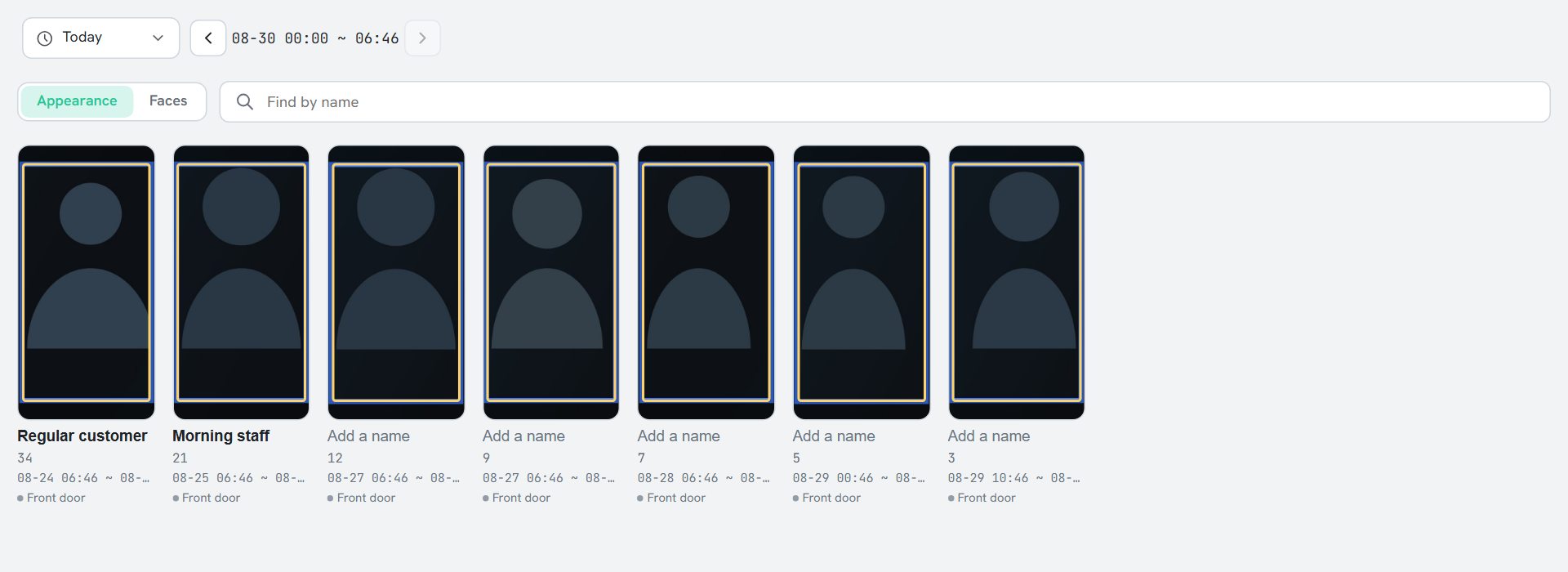
The grouping criterion is selected at the top left of the list: Appearance (default) or Faces. In environments where faces are captured small, such as ceiling cameras, Appearance is more reliable. Appearance works without face recognition enabled; when face recognition is off, this selector is not shown at all.
Opening a card
- Clicking a card lists the recordings of that person, one tile per video. The selected range and camera filter still apply; Back at the top returns to the list.
- If a photo of someone else is mixed in, click Not this person on that tile. The photo leaves the card and becomes a card of its own; until the card view is closed, Undo under Removed: n restores it.
- On a Faces card, photos can be picked to register a face (see Registering a Face).
- Recordings cannot be deleted from a card view; delete them from the Scenes view.
Working with the list
- The sort menu on the right offers Newest first (default), Oldest first, Most clips, and Fewest clips.
- With two or more cameras, the camera filter selects All or the cameras to show.
- If something that is not a person becomes a card, use the hide icon at the card's top right to take it off the list. The hidden items icon at the top right of the list shows hidden cards, and Undo restores them.
- While the list is scrolled away from the top, new cards do not push it around. n new people appears instead; clicking it brings them in and scrolls to the first new card. Newly appeared cards carry a New tag for a short time.
- With many cards, drag the time bar along the right edge to jump to a time, and use the back-to-top button at the bottom right to return to the start.
Narrowing cards by text or attributes
In the search row below the range picker, set a condition with By text or By attributes to show only the cards of people who match. The number found (Found: n) is shown, and Clear removes the condition. Text matches are ordered by how well they match. Available while Appearance is selected.
Merging cards of the same person
- Check the box at the top left of two or more cards of the same person. A bar with n selected, Clear, and Merge appears above the list.
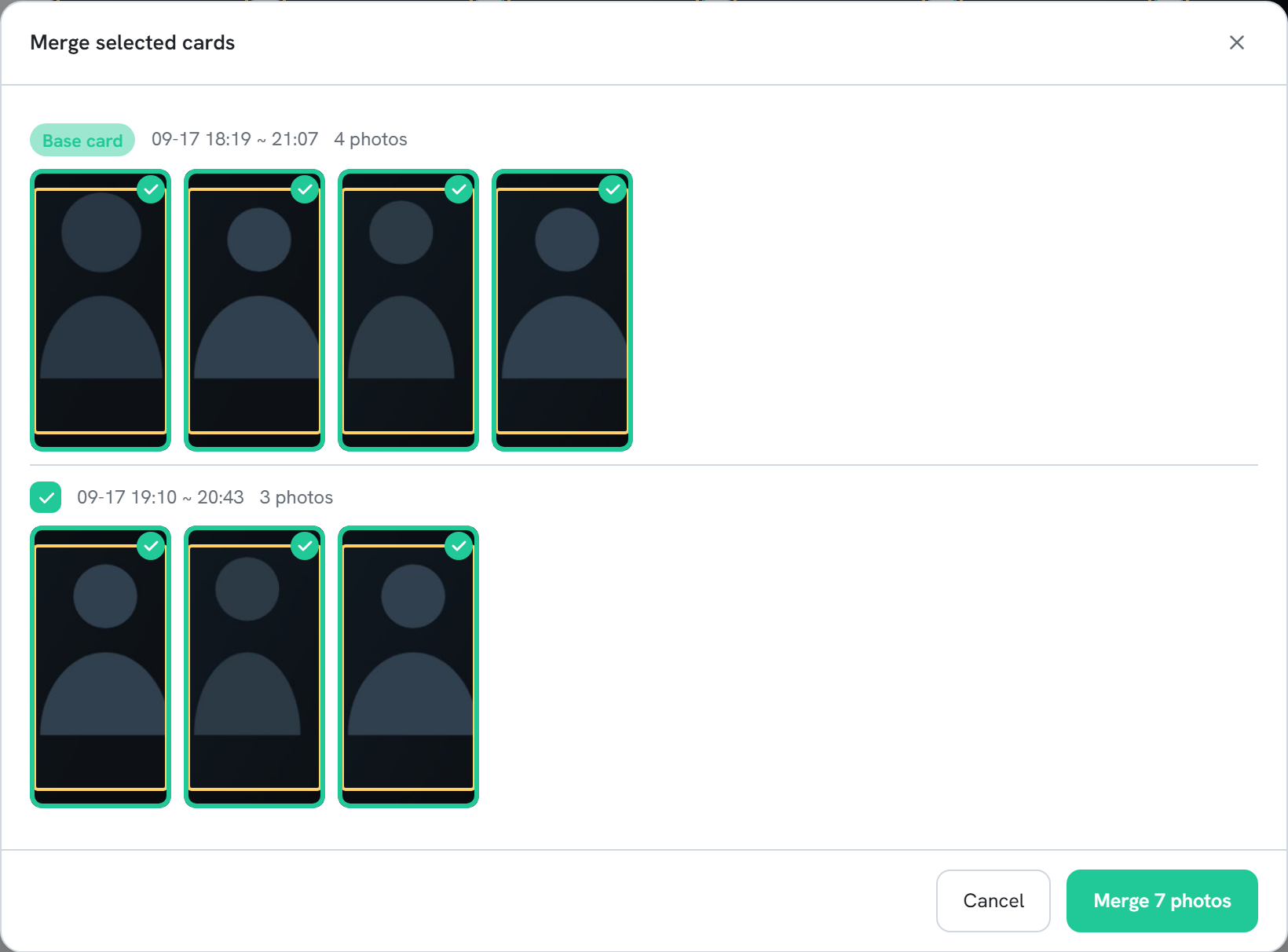
- Click Merge. The Merge selected cards window opens. The card that appeared first is the Base card, and every photo of each card is shown checked.
- Review the photos and uncheck any photo of someone else. To leave out a whole card, uncheck the box next to its heading. Up to 8 photos are shown per card; +n more shows the rest.
- Click Merge n photos.
Merge suggestions
When cards are likely to be the same person, n card pairs may be the same person appears above the list. Review opens the Same person? window, which works like the merge window: review the photos, then click Merge n photos, No match, or Skip for now. Candidate cards show n% similar, and the next suggestion opens after you answer. The ✕ on the suggestion row hides suggestions for the rest of the session.