Condition Group
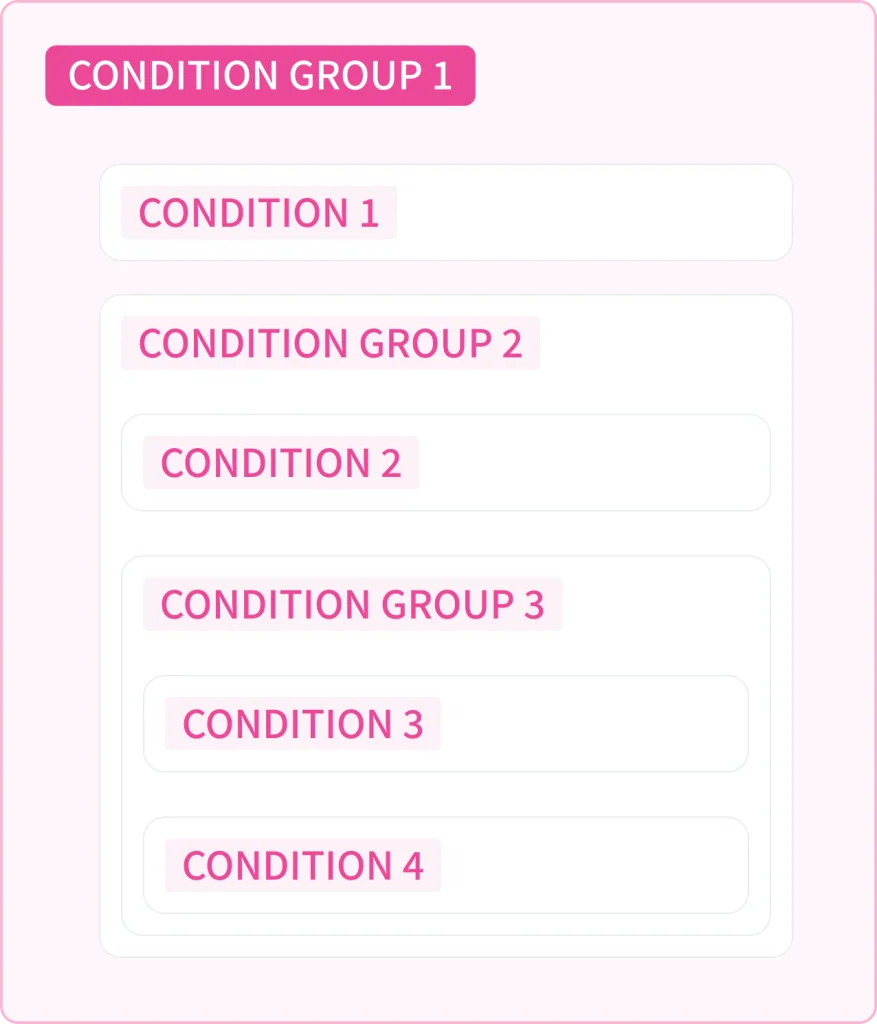
A condition group bundles multiple conditions or condition groups and calculates whether the combined result is met. Condition groups can be nested, enabling complex logical expressions.
Add
- When a control's condition area or the inside of a condition group is empty, select Condition Group from the Add Condition or Add button shown in that place.
- Where the condition area already has blocks, use the + button above or below a block.
Operator and Option
The Operator (AND / OR) and Option work the same way as the control's condition operator and condition option, and the option applies to the combined result of the group. For example, a rule such as "all three conditions stay true for 3 seconds" is built by applying the Hold Time option to the condition group rather than to each condition.
The Hold Duration, Count, Timeout, and Timeout Mode fields shown depending on the option, and their defaults, are also the same as for a control (see the condition option of Control).
Common Settings and Management
A disabled condition group does not execute, and any name can be used. A condition group can only be moved within a control's condition area. Edit, duplicate, copy, cut, or delete it from the right-click menu; deleting a condition group also deletes every condition and condition group it contains, and they cannot be recovered. See Common Block Operations for details.