Logic
Logic is the workspace where all algorithm blocks are created.
- Algorithm blocks contained in a logic execute at each execution cycle of that logic.
- Multiple logics can be created within a single project.
- When multiple logics exist, each logic runs simultaneously regardless of order.
Add a logic with + in the left menu. Each logic has the following settings.
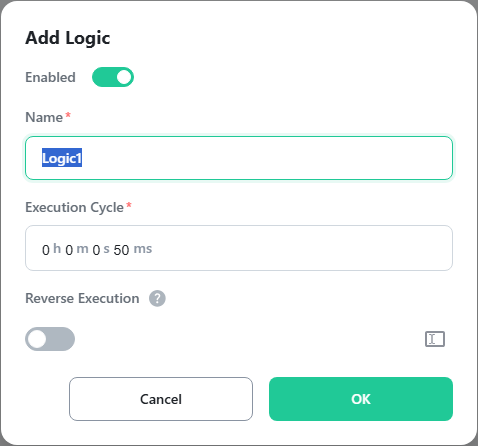
Enabled
Sets whether the logic is used. A disabled logic does not execute.
Name
Enter the display name. Any name can be used.
Execution Cycle
Sets the execution cycle of the logic. The blocks in the logic execute at the specified cycle; choose a value appropriate for your hardware and control objective. Shorter cycles give faster response but higher CPU usage. The minimum is 1 millisecond, and 50 to 100 milliseconds is suitable for general use.
For example, if the execution cycle is 50 milliseconds and all blocks take 5 milliseconds to run, the system waits for the remaining 45 milliseconds before executing the blocks again.
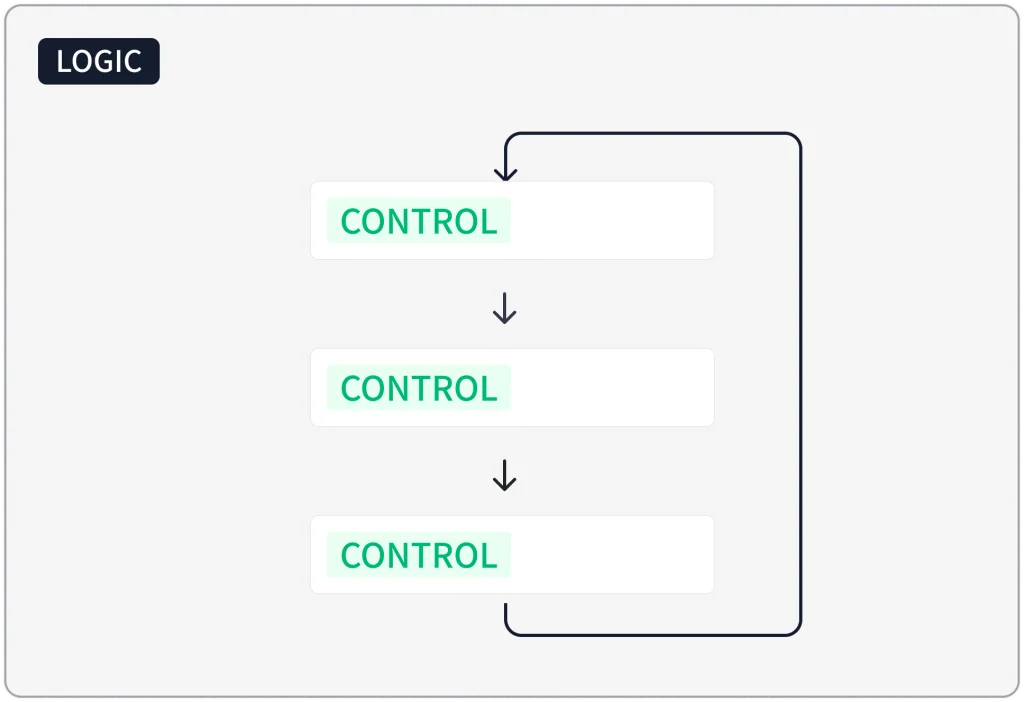
Within one execution cycle, the logic runs the controls and control groups directly under it in order from the top, and once the last block finishes it starts again from the first block in the next cycle.
Reverse Execution
Reverses the execution order of child blocks. When off, blocks execute top to bottom; when on, bottom to top.
Edit, Duplicate, Delete
Manage logics with the Edit, Duplicate, and Delete buttons in the left menu. Deleted logics are moved to the trash and removed automatically after 30 days (Part 3).
Block Selection Mode / Clipboard
Select multiple blocks (controls, conditions, actions, etc.) at once to duplicate, delete, copy, cut, and paste them in bulk. Click the checkbox icon in the top-right corner to enter selection mode, click blocks to select them, and use the action buttons in the header. Pasting works within the same logic and across different logics.
- In selection mode, clicking a block selects it and clicking again deselects it. Selected blocks are highlighted.
- Duplicate, Delete, Copy, and Cut are applied to all selected blocks at once with the buttons in the header.
- Selection mode exits automatically after Copy or Cut.
- After Paste, the pasted blocks are selected automatically.
| Shortcut | Action |
|---|---|
Ctrl+C | Copy |
Ctrl+X | Cut |
Ctrl+V | Paste |
Delete | Delete |
Esc | Exit selection mode |