Control
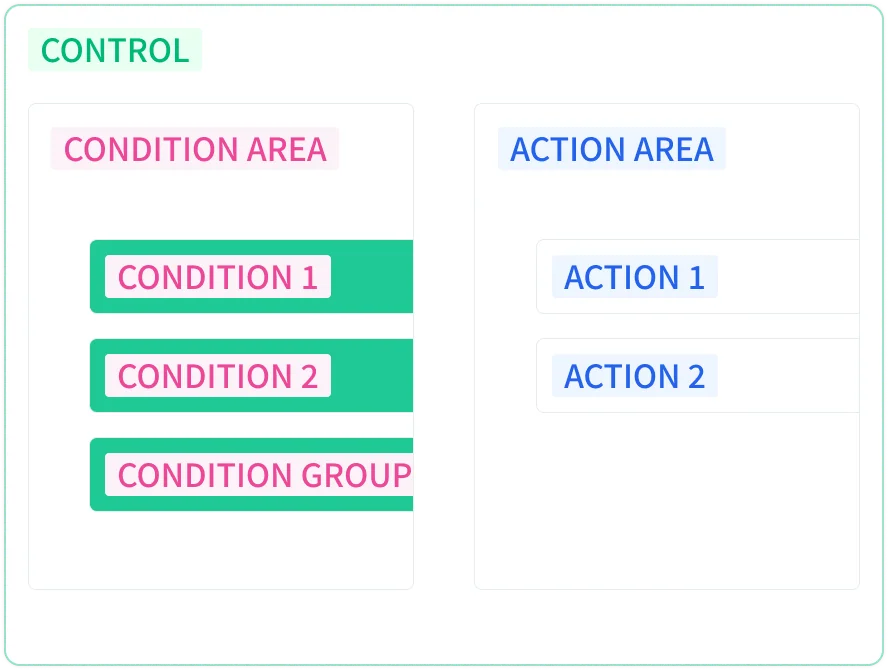
A control is the basic execution unit of algorithm blocks, consisting of a condition area and an action area. When the condition area is met, the actions execute in order, and after all actions complete, the condition area is evaluated again. When one logic holds several controls, they run in order from the top, and once the last one finishes execution returns to the first.
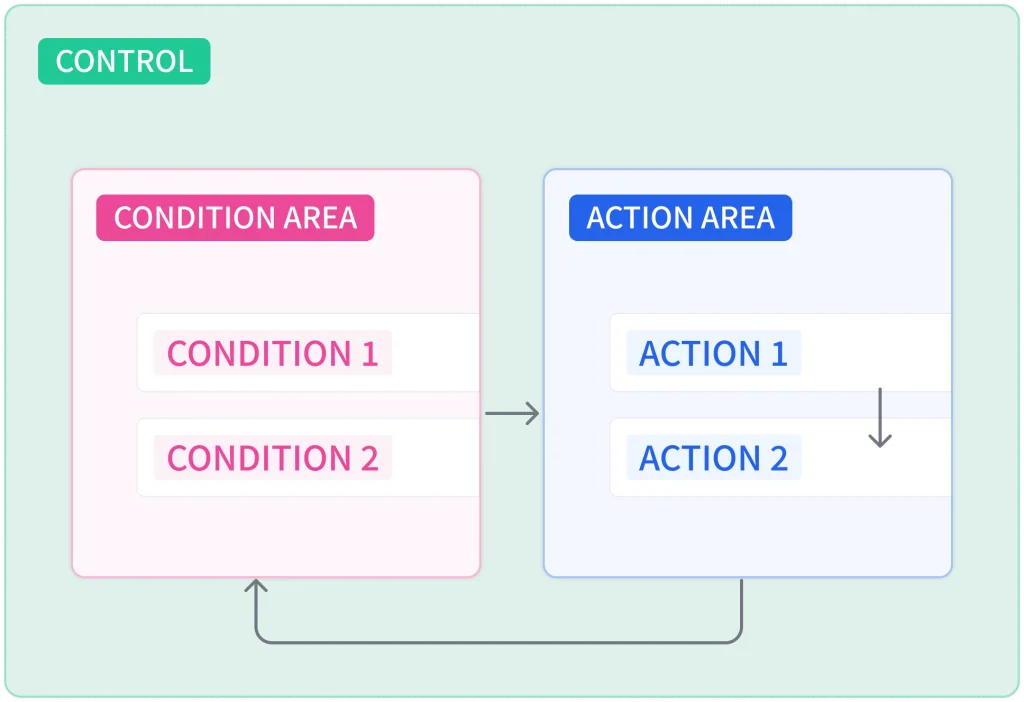
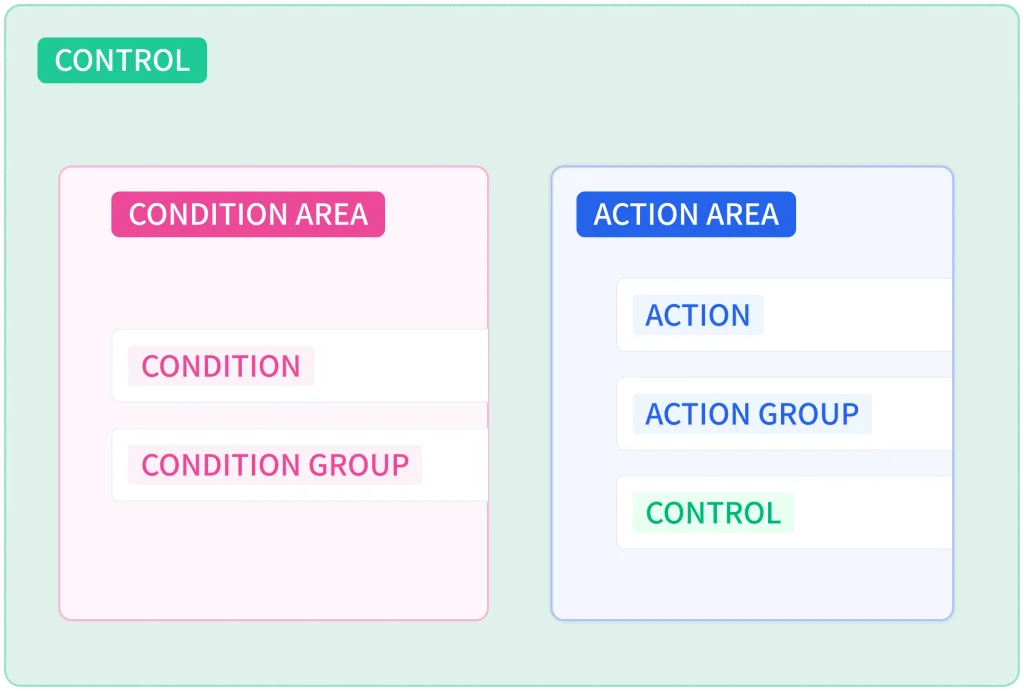
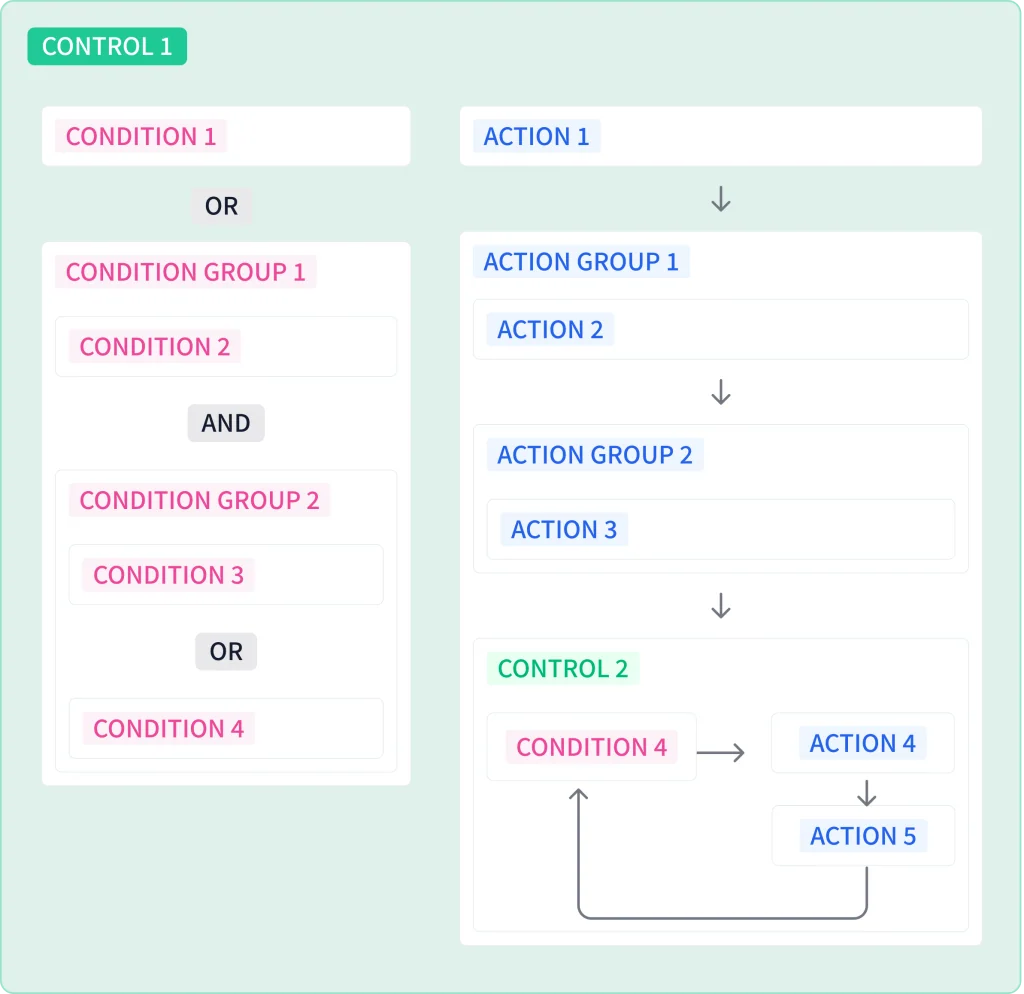
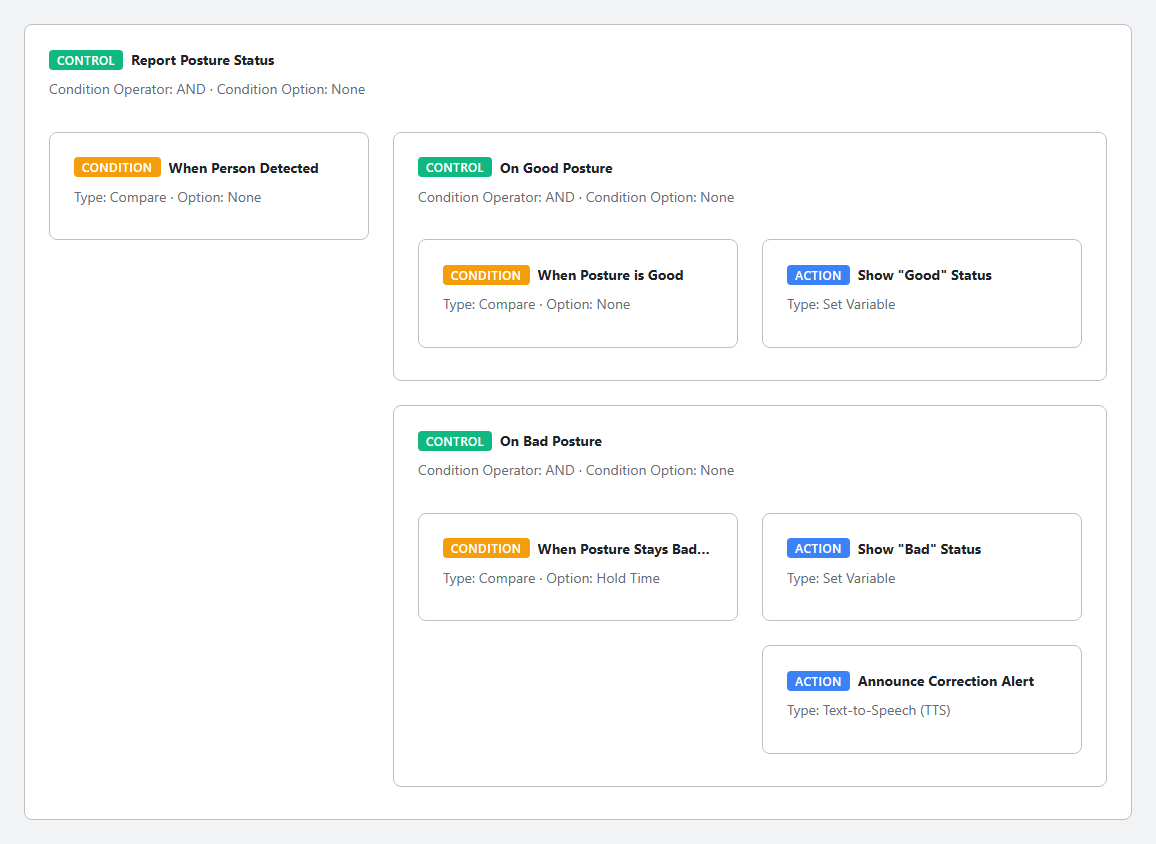
The condition area can contain conditions and condition groups; the action area can contain actions, action groups, and controls. Nested structures are supported, so you can build configurations that branch into different actions depending on the situation after a condition is met.
Add
- When the logic is empty, select Control from + Add in the upper right.
- When the inside of a control group or a control's action area is empty, select Control from the add button shown in that place.
- Where blocks already exist directly under the logic, inside a control group, or in an action area, use the + button above or below a block.
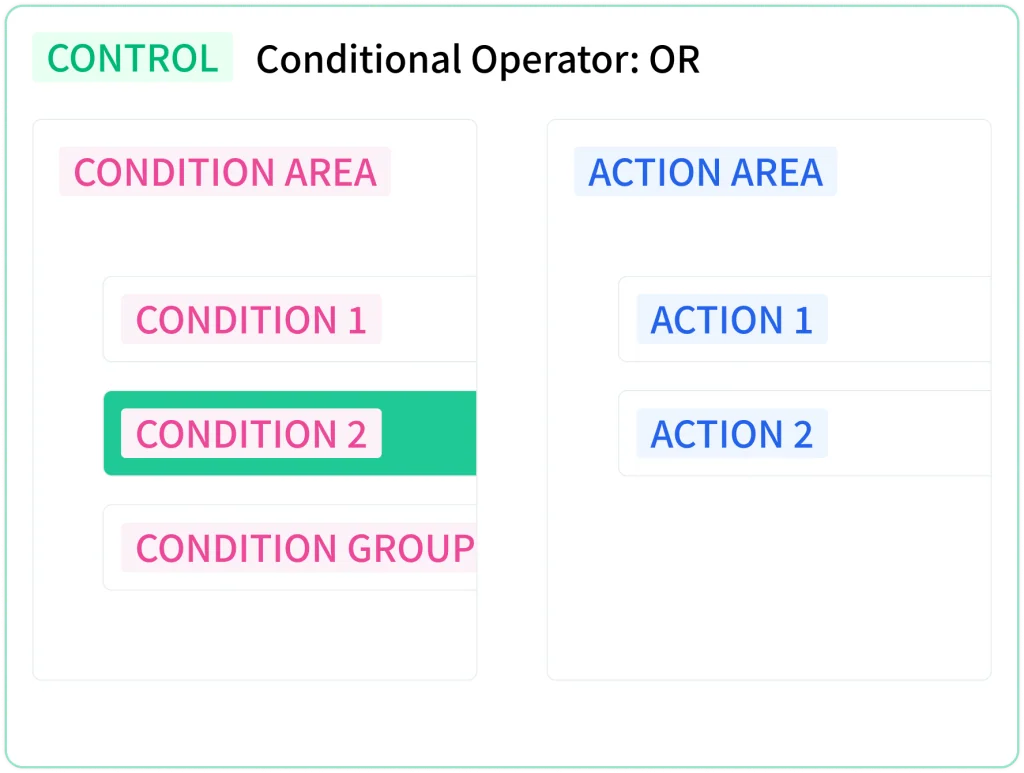
Condition Operator
The operator that combines multiple conditions or condition groups in the condition area.
- AND: Actions execute only when every condition and condition group in the condition area is met.
- OR: Actions execute when at least one condition or condition group is met.
When the condition area holds only one condition, leave the default (AND).
Condition Option
An option applied to how the condition area is evaluated.
- None: The condition is met when true and not met when false.
- Invert: The condition is met when false and not met when true.
- Rising Edge: Met only at the moment the condition changes from false to true. Example: the moment a push button is pressed.
- Falling Edge: Met only at the moment the condition changes from true to false. Example: the moment a pressed push button is released.
- Hold Time: Met once when the condition stays true for the specified hold time. The hold time resets to zero when the condition is met or becomes false during the hold period. Example: holding a push button for 3 seconds.
- True Count: The count increases by one each time the condition changes from false to true, and the condition is met once when the count reaches the specified value. The count resets to zero when met, or when the timeout expires. Example: pressing a push button 3 times.
With True Count selected, you also set the count, the timeout, and the Timeout Mode. Interval Time requires the interval between the moments the condition becomes true to stay within the timeout (e.g. pressing 3 times with intervals shorter than 1 second). Total Time requires the total time from the first true moment until the full count to stay within the timeout (e.g. 3 presses within 5 seconds of the first press).
Depending on the selected condition option, the following fields are also shown.
| Field | Shown when | Default |
|---|---|---|
| Hold Duration | Condition Option is Hold Time | 5 seconds |
| Count | Condition Option is True Count | 3 (1 to 65535) |
| Timeout | Condition Option is True Count | 1 second |
| Timeout Mode | Condition Option is True Count | Interval Time |
Priority
Enter the priority to apply when the control belongs to a control group whose priority mode is Priority. If not applicable, leave the default of 1. The range is -32768 to 32767, and lower numbers mean higher priority.
Common Settings and Management
Enabled, Name, and Reverse Execution behave the same as for logic. A disabled control does not execute, and any name can be used. Move controls by drag and drop, and edit, duplicate, copy, cut, or delete them from the right-click menu. Deleting a control also deletes all blocks it contains, and they cannot be recovered. See Common Block Operations for details.