Action
Add an action inside a control or action group, or with the + button shown above or below blocks in the action area. Each action has an enable state, a name, and a type, and the detail settings depend on the type. Most action types use resources registered in advance in the Settings menu (Part 6).
When the action area is empty, add an action with the Add Action button shown in that place. A disabled action does not execute, and any name can be used.
Added actions are edited, duplicated, copied, cut, and deleted from the right-click menu or edited by double-clicking, and reordered by drag and drop. Conditions can only be moved within the condition area, and actions only within the action area. Deleted actions cannot be recovered. See Common Block Operations for details.
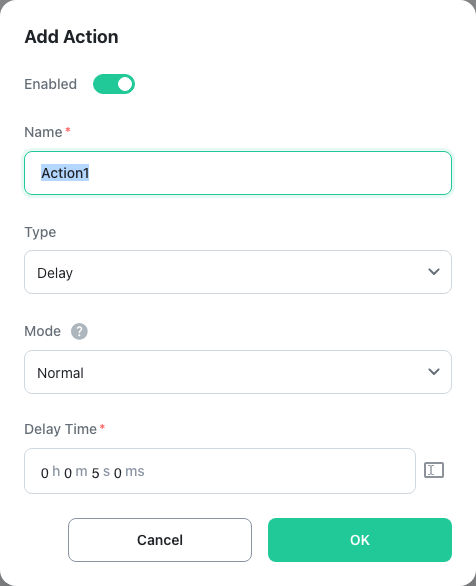
Action Types
| Group | Type | Description |
|---|---|---|
| Hardware | I/O Device Control | Controls various I/O devices such as LEDs, sensors, LCDs, and motors. |
| System | Set Variable | Writes a value to a variable. Write Mode also performs inversion, arithmetic, and string appending. |
| Shell Command | Executes terminal commands. Can run system commands or launch external programs. | |
| Read/Write File | Reads from or writes to files. Supports text and binary formats. | |
| File System | Creates, deletes, moves, or copies files and directories. | |
| Delay | Waits for a specified duration. Normal mode works in milliseconds and Precision mode in microseconds (0 to 999μs). | |
| Timer | Controls a timer with five commands: Start, Stop, Reset, Set Time, and Get Time. Useful for measuring elapsed time or implementing timeouts. | |
| Data | Collection | Adds, removes, or retrieves data from collections. Supports list and map types. |
| Database | Stores or retrieves data from databases. Supports SQL, Firebase, and more. | |
| Statistics | Calculates real-time statistics such as average, max, min, and sum from collected data. | |
| Data Logging | Records current variable values to the specified data logging channel. | |
| Media | Play Media | Plays, pauses, or stops audio/video files or URLs. |
| Display Image | Displays an image on screen. Specify a file path or URL. | |
| Synthesizer | Plays notes on a virtual instrument. Set pitch and duration, or play MIDI files. | |
| Camera | Captures images or starts/stops video web streaming from the camera. | |
| Audio Analysis | Analyzes audio frequencies and amplitudes in real time using FFT (Fast Fourier Transform). | |
| Record Audio | Records audio from the microphone. | |
| Transform Audio | Adjusts the tempo and pitch of audio files. | |
| AI | AI Analysis | Performs AI analysis on video or audio. See the AI Analysis section below. |
| LLM AI Query | Sends a text query with optional attachments to the LLM AI provider and stores the response in a variable. | |
| Text-to-Speech (TTS) | Converts text to speech using AI. Supports built-in local models and online AI services. | |
| Speech-to-Text (STT) | Converts speech to text using AI. Supports built-in local models and online AI services. | |
| IoT | Telegram Message | Sends or receives messages via a Telegram bot. |
| Send Email | Sends emails via SMTP. | |
| Push Notification | Sends a push notification to the user's mobile app. | |
| Zigbee Device Control | Reads sensor values or controls actuators of Zigbee devices. Supports 3,400+ devices via Zigbee2MQTT (an open-source bridge that connects Zigbee devices over MQTT). | |
| Home Assistant Integration | Controls Home Assistant sensors, switches, and lights, or exposes Grablo variables to Home Assistant. | |
| Communication | MQTT Communication | Publishes (sends) or subscribes to (receives) messages using MQTT, the standard IoT messaging protocol. |
| Modbus Communication | Exchanges data with PLCs and other industrial equipment using the Modbus protocol. | |
| OPC UA Communication | Communicates with industrial equipment using the OPC UA protocol. | |
| HTTP Communication | Sends and receives HTTP requests to web servers or REST APIs. | |
| User Defined Communication | Implements custom protocols over serial, TCP, UDP, WebSocket, Bluetooth, or shared memory. | |
| Control | PID Control | Performs feedback control with the PID algorithm, for precise control of temperature, motor speed, and more. |
| Misc. | Custom Action | Write the action yourself with block coding. |
Wait Until Finished
The Play Media, Synthesizer, Text to Speech, and Audio Transform actions have a Wait Until Finished setting. When it is on, the action stays in the running state until playback ends, so the next action does not start. When it is off, the action completes as soon as playback starts and the next action runs immediately. Turn it off when other actions must proceed during playback.
Status Variables
Some actions report their current state as a number. Use the returned value with Compare conditions.
| Action | Status values |
|---|---|
| Play Media | 0 initial / 1 playing / 2 paused / 3 stopped / 4 playback complete / 5 error |
| Synthesizer | 0 initial / 1 playing / 2 paused / 3 stopped / 4 playback complete |
| Speech to Text | 0 idle / 1 listening / 2 processing / 3 complete / 4 error |