Condition
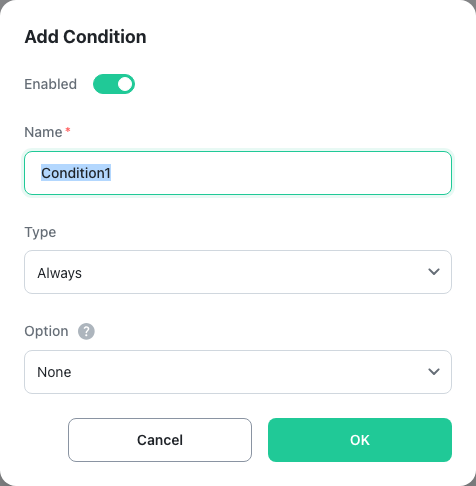
Add a condition inside a control or condition group, or with the + button shown above or below blocks in the condition area. When the condition area is empty, use the Add Condition button shown in that place. Each condition has an enable state, a name, a type, and an option; the option works the same as the control's condition option.
- Enabled: A disabled condition is excluded from the condition calculation, so it has no effect on whether the condition area or condition group is met.
- Name: Any name can be used.
- Type: The settings of the selected type are shown. Change the combo box value to switch to another type; the default is Always.
- Option: The available options depend on the type. Always, Once, and Periodic offer None and Invert; On Change offers None, Invert, and Count; the remaining types offer the same six options as the control's condition option. The Hold Duration, Count, Timeout, and Timeout Mode fields shown depending on the option are also the same as for a control.
Condition Types
| Group | Type | Description |
|---|---|---|
| Logic | Always | Always met. Use this when an action should always run. |
| Once | Met only once at startup, then never again. Useful for one-time initialization such as setting default variable values. | |
| Compare | Compares a variable's value against a specified value. The most commonly used type. | |
| Date/Time | Schedule | Met on specified dates. Repeat intervals can be set by day, week, month, or year (weekly intervals also take the days of the week), and the end option is No End, End Date, or Repeat Count. |
| Time Range | Met only during specified time ranges within a day. Multiple ranges can be configured. | |
| Periodic | Met for one cycle (one logic execution cycle) at regular intervals. Use this for actions that run periodically. | |
| State | Watch Condition | References whether another condition, condition group, or control is met. Useful for reusing existing conditions. |
| Watch Action | Uses the execution state of another action, action group, control, or control group (Not Started, Running, Complete, Error) as a condition. | |
| On Change | Met for one cycle whenever a variable's value changes. Tolerance and Sampling Period tune what counts as a change. | |
| Misc. | Custom Condition | Write the condition yourself with block coding. The blocks must return a digital value. |
Settings by Type
Compare
Compares the variable's value with the entered value; the condition is met when the comparison is true.
- Variable: Select the variable to compare. Variables of any type can be selected.
- Operator: Choose from Equal, Not Equal, Less Than, Less Than or Equal, Greater Than or Equal, and Greater Than. For digital, string, byte array, and color variables only Equal and Not Equal are available.
- Value: Enter the value to compare. The input changes to match the variable type (number, string, date, clock, time, color, and so on), and the value can also be given with block coding.
Schedule
Met when today's date falls on the configured schedule. Because it is a date-based condition, combine it with a Time Range condition to run only at certain times of day.
- Start Date: Select the date on which the schedule starts. The default is today.
- End Option: Choose No End (applies from the start date onward, e.g. from 2025-01-31 onward), End Date (applies only from the start date to the end date, e.g. 2025-01-31 to 2025-02-28), or Repeat Count (applies for the given number of repetitions from the start date, e.g. 5 repetitions every 3 days from 2025-01-31 gives 01-31, 02-03, 02-06, 02-09, and 02-12).
- End Date: Shown only when End Option is End Date.
- Repeat Count: Shown only when End Option is Repeat Count (1 to 65535).
- Repeat Unit: Choose Day, Week, Month, or Year.
- Repeat Interval: Enter how many repeat units apart the schedule repeats. With Repeat Unit Day and Repeat Interval 3, the condition is met every 3 days.
- Day of Week: Shown only when Repeat Unit is Week; select the days on which the schedule applies.
Time Range
Met when the current time falls within any one of the configured time ranges. Add a range with + at the upper right of the Time Range table, enter the start and end time on each row, and remove a range with the delete icon at the end of the row. At least one row is required.
Periodic
Enter the time interval in Interval. The default is 5 seconds, and the condition is met for one cycle at each interval.
Watch Condition
In the Condition field, select the condition, condition group, or control to reference. The selection dialog has a logic list at the top: pick a logic, then pick one of its controls or conditions, so conditions in other logics can be referenced as well. Each entry is listed with its type and option.
Watch Action
In the Action field, select the action, action group, control, or control group to reference (the selection works the same as for Watch Condition), and in Status choose the execution state to compare. The condition is met when the referenced target's current state equals the selected state.
- Not Started: The referenced target has not executed yet.
- Running: The referenced target is executing.
- Complete: The referenced target has finished executing. This is the default.
- Error: An error occurred while the referenced target was executing.
On Change
In Variable, select the variable whose value changes are detected. Variables of any type can be selected, and Tolerance is shown only when a numeric variable is selected. See the note above for the meaning of Tolerance and Sampling Period. This type offers three options: None, Invert, and Count.
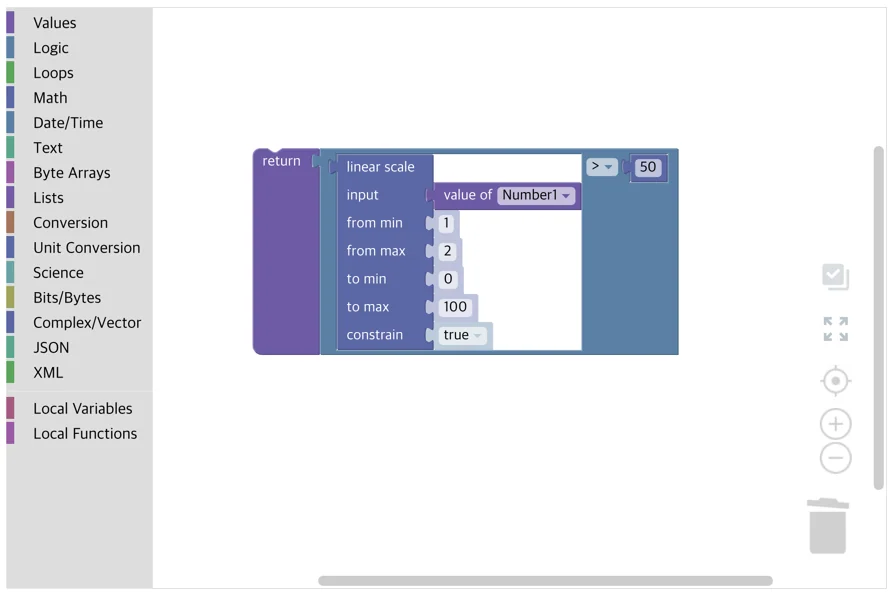
Custom Condition
Write the condition with block coding in the block editor of the Condition field. The blocks must be connected to the top-level return block, and the return value must be of digital type. The condition is met when the return value is true and not met otherwise. See Part 8 for how to use the block editor.