Block Catalog
A block-by-block reference for the 18 categories in the block editor toolbox. Each block is listed with its picture, what it does, and the data types of its inputs and outputs. The content is the same as the tooltip shown when hovering over a block in the app. Types are written in square brackets (for example, value1 [Number]), and the data types are the same as the variable types. For how to use the block editor and the common rules, see Part 8, Block Coding; for the category overview, see Blocks.
Variables
Blocks that read and write project variables, plus the return block that sends the result out of the block editor. The type of the read and write blocks follows the variable selected in the block: selecting a number variable connects as [Number], selecting a text variable connects as [Text]. The return block is already placed in the workspace and is the only path for sending a result out.
Read Variable
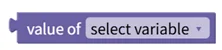
Gets the value of the selected variable.
- Input: none
- Output: variable value [Selected variable type]
Write Variable

Sets the selected variable to a value.
- Input: value to store [Selected variable type]
- Output: none
Return

Returns the value of the connected block to the outside of the block editor. The type of the connected value must match the type of the value input.
- Input: value to return [Any type]
- Output: none
Logic
Conditional statements (if), comparison, and boolean operations. Compare Values accepts two values of any type, not only numbers, and the result of a comparison or logic operation is always [Digital]. The Condition block uses its gear button to add condition entries or change their order.
Condition

If the value connected to if is true, runs the blocks connected to do. This corresponds to an if statement in programming languages. Use the gear button to add else if and else entries or change their order.
- Input: condition [Digital]
- Output: none
Compare Values

Compares two input values to check whether they are equal, not equal, greater than, or less than each other. The comparison operator is selected from the block's dropdown.
- Input: value1 [Any type], value2 [Any type]
- Output: comparison result [Digital]
Logic Operation

Performs a logical AND (and) or OR (or) on two input values. AND returns true when both values are true; OR returns true when at least one is true.
- Input: value1 [Digital], value2 [Digital]
- Output: operation result [Digital]
Not

Returns the inverted input value: true becomes false and false becomes true.
- Input: value [Digital]
- Output: inverted value [Digital]
Digital Value

Outputs the constant true or false.
- Input: none
- Output: true or false [Digital]
Loops
Count, condition, counting, and list loops, plus break/continue. The counting loop and the list loop work by storing the current number or item in a local variable, so read that local variable inside the loop. The Break/Continue block can only be used inside a loop block.
Repeat N Times
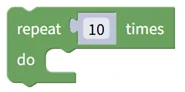
Runs the blocks connected to do the specified number of times.
- Input: number of repetitions [Number]
- Output: none
Conditional Loop
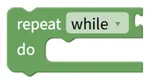
Repeats the blocks while the condition is true (while) or while it is false (until). Select repeat while or repeat until from the dropdown.
- Input: condition [Digital]
- Output: none
Counting Loop
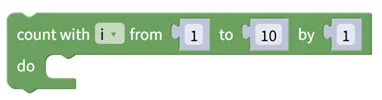
Runs the blocks connected to do repeatedly while a local variable increases or decreases from the start number to the end number by the specified interval. This corresponds to a for loop in programming languages.
- Input: start number [Number], end number [Number], interval [Number]
- Output: none
List Loop
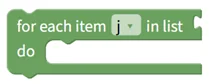
Stores each item of the list in a local variable in order and runs the blocks connected to do for each. This corresponds to a list iterator in programming languages.
- Input: list to iterate [List]
- Output: none
Break/Continue
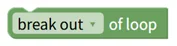
With break out of loop selected, exits the loop block (break); with continue with next iteration of loop selected, skips the rest of the loop body and moves to the next iteration (continue). This block can only be used inside a loop block.
- Input: none
- Output: none
Math
Arithmetic and mathematical functions. For angles, only the inputs of the trigonometric functions (sin, cos, tan) are in degrees; the outputs of the inverse trigonometric functions, the hyperbolic functions, and coordinate conversion are in radians. The Split Decimal block and the Coordinate Conversion block return their two results as a [List].
Number

Outputs a numeric constant. Enter the value directly in the block's field.
- Input: none
- Output: value [Number]
Constants

Returns one of the mathematical constants π (3.141…), e (2.718…), φ (1.618…), sqrt(2) (1.414…), sqrt(1/2) (0.707…), or ∞ (infinity).
- Input: none
- Output: constant value [Number]
Arithmetic

Calculates the sum, difference, product, quotient, or power of two numbers.
- Input: value1 [Number], value2 [Number]
- Output: calculated value [Number]
Remainder
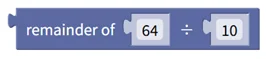
Returns the remainder from dividing the two input values.
- Input: value1 [Number], value2 [Number]
- Output: remainder [Number]
Round

Rounds a number at the specified number of decimal places with round, round up, or round down. Example: round 1.234 to 1 decimal place → 1.2
- Input: number [Number], decimal places [Number]
- Output: rounded number [Number]
Split Decimal

Separates a number into its integer part and fractional part and returns them as a list. Example: 1.234 → [1, 0.234]
- Input: number [Number]
- Output: [integer part, fractional part] [List]
Square Root, Absolute Value, Logarithm, Exponentiation
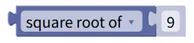
Calculates one of the square root, absolute value, negation, natural logarithm (ln), common logarithm (log), e to the power (e^), or 10 to the power (10^) of the input value.
- Input: value [Number]
- Output: calculated value [Number]
nth Root
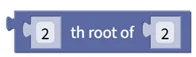
Calculates the nth root of a number. n = 2 is the square root and n = 3 the cube root. Example: 3rd root of 8 → 2
- Input: base number [Number], root index [Number]
- Output: nth root [Number]
Reciprocal
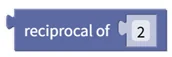
Calculates the reciprocal (1 divided by the number). Example: reciprocal of 4 → 0.25
- Input: number [Number]
- Output: reciprocal [Number]
Trigonometric Functions
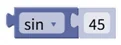
Calculates sin, cos, tan, asin, acos, or atan. The input unit for sin, cos, and tan is degrees; the output unit for asin, acos, and atan is radians.
- Input: angle [Number]
- Output: trigonometric function value [Number]
Hyperbolic Functions
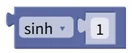
Calculates the hyperbolic sine (sinh), hyperbolic cosine (cosh), or hyperbolic tangent (tanh). The input is in radians.
- Input: angle [Number]
- Output: hyperbolic function value [Number]
Constrain

Constrains the input value to between the minimum and maximum values. Example: constrain 105 to minimum 1, maximum 100 → 100
- Input: input value [Number], minimum value [Number], maximum value [Number]
- Output: constrained value [Number]
Random Integer

Returns a random integer between the minimum and maximum values, inclusive.
- Input: minimum value [Number], maximum value [Number]
- Output: random integer [Number]
Random Fraction
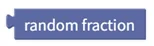
Returns a random fraction from 0.0 (inclusive) up to 1.0 (exclusive).
- Input: none
- Output: random fraction [Number]
Number Properties
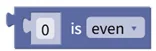
Checks whether the input value is even, odd, prime, whole, positive, or negative, or whether it is divisible by a given number.
- Input: value [Number]
- Output: property match [Digital]
Range Check
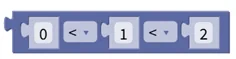
Checks whether a value falls within the specified range. Choose the inequality operators to control whether the boundaries are included.
- Input: minimum value [Number], test value [Number], maximum value [Number]
- Output: within range [Digital]
Linear Scale
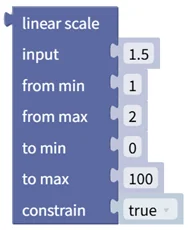
Maps an input value from one range to another with a linear transformation. If constrain is true, the output is clamped to the output range. Example: map 3 from [0, 10] to [0, 100] → 30
- Input: input [Number], from min [Number], from max [Number], to min [Number], to max [Number], constrain [Digital]
- Output: mapped value [Number]
Coordinate Conversion
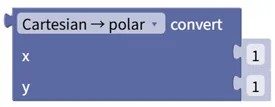
Converts between Cartesian coordinates (x, y) and polar coordinates (radius, angle). The angle is in radians.
- Input: coordinate1 [Number], coordinate2 [Number]
- Output: converted coordinates [List]
List Operations
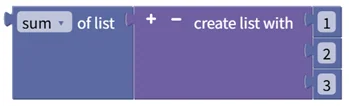
Calculates one of the sum, minimum, maximum, average, median, mode, standard deviation, or a random item of the numbers in a list.
- Input: list [List]
- Output: calculated value [Number]
Date/Time
Creates, calculates, and converts values of the three types Date, Time, and Duration. A date is a year-month-day, a time is a time of day, and a duration is an elapsed span made of hours, minutes, seconds, and milliseconds.
- System Uptime can represent up to 4,294,967,295 milliseconds (about 49.7 days) and starts over from 0 when that is exceeded.
- If the result of Add to Time becomes negative or exceeds 24 hours, it is calculated as the time on the previous or next day.
- If the result of Add to Duration becomes negative, 0 hours 0 minutes 0 seconds 0 milliseconds is returned.
- Weekday numbers start at 0 for Monday and end at 6 for Sunday. Weekday names are returned as English abbreviations such as "THU".
- Current Timestamp is text in the format YYYY-MM-DD HH:MM:SS.
- The output type of Unix Timestamp is [Duration], not [Number]. To get a number of milliseconds, connect it to the Duration to Milliseconds block.
- The blocks that calculate a difference return the second value minus the first (value2 - value1), so the sign depends on the input order.
Date Input
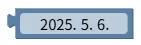
Creates a date constant by selecting a date in the block's calendar field.
- Input: none (calendar field)
- Output: selected date [Date]
Time Input
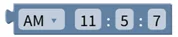
Creates a time constant from the AM/PM, hour, minute, and second fields.
- Input: none (AM/PM, hour, minute, second fields)
- Output: set time [Time]
Duration Input
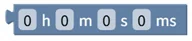
Creates a duration constant from the hours, minutes, seconds, and milliseconds fields.
- Input: none (hours, minutes, seconds, milliseconds fields)
- Output: set duration [Duration]
Current Date
Gets the current system date. Example: 2023-03-20
- Input: none
- Output: current date [Date]
Current Time
Gets the current system time. Example: 17:11:30
- Input: none
- Output: current time [Time]
Current Timestamp
Returns the current date and time as text in the format YYYY-MM-DD HH:MM:SS. Example: "2023-12-25 17:11:30"
- Input: none
- Output: timestamp text [Text]
System Uptime
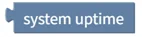
Returns the time elapsed since the system booted. It can represent up to 4,294,967,295 milliseconds (about 49.7 days) and starts over from 0 when that is exceeded. Example: 0 hours 60 minutes 30 seconds 500 milliseconds
- Input: none
- Output: elapsed time [Duration]
Unix Timestamp
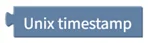
Returns the time elapsed since January 1, 1970, 00:00:00 UTC. The output is a duration, not a number.
- Input: none
- Output: Unix time [Duration]
Create Date
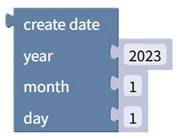
Creates a date from year, month, and day values. Example: 2022, 12, 1 → 2022-12-01
- Input: year [Number], month [Number], day [Number]
- Output: created date [Date]
Create Time
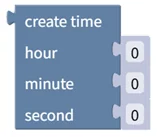
Creates a time from hour, minute, and second values. Example: 14, 56, 30 → 14:56:30
- Input: hour [Number], minute [Number], second [Number]
- Output: created time [Time]
Create Duration
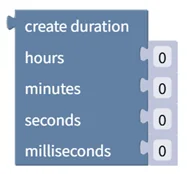
Creates a duration from hours, minutes, seconds, and milliseconds values. Example: 12, 34, 56, 789 → 12 hours 34 minutes 56 seconds 789 milliseconds
- Input: hours [Number], minutes [Number], seconds [Number], milliseconds [Number]
- Output: created duration [Duration]
Add to Date
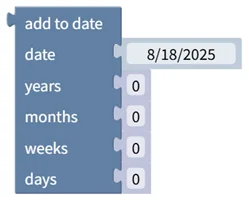
Adds years, months, weeks, and days to a date, or subtracts them when negative values are entered. Example: 2023-03-23 + 1 year - 3 months + 2 weeks - 5 days → 2023-12-31
- Input: date [Date], years [Number], months [Number], weeks [Number], days [Number]
- Output: calculated date [Date]
Add to Time
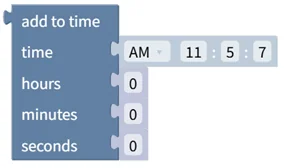
Adds or subtracts hours, minutes, and seconds to a time. If the result becomes negative or exceeds 24 hours, it is calculated as the time on the previous or next day. Example: 10:46:52 - 12 hours + 30 minutes - 50 seconds → 23:16:02
- Input: time [Time], hours [Number], minutes [Number], seconds [Number]
- Output: calculated time [Time]
Add to Duration
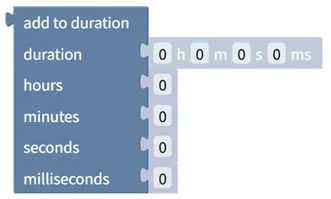
Adds or subtracts hours, minutes, seconds, and milliseconds to a duration. If the result becomes negative, 0 hours 0 minutes 0 seconds 0 milliseconds is returned. Example: 0 hours 10 minutes 20 seconds 100 milliseconds + 1 hour - 30 minutes + 30 seconds - 100 milliseconds → 0 hours 40 minutes 50 seconds 0 milliseconds
- Input: duration [Duration], hours [Number], minutes [Number], seconds [Number], milliseconds [Number]
- Output: calculated duration [Duration]
Compare Dates

Compares two dates with the selected comparison operator. Example: 2023-03-23 < 2023-03-30 → true
- Input: date1 [Date], date2 [Date]
- Output: comparison result [Digital]
Compare Times

Compares two times with the selected comparison operator. Example: 11:04:30 < 12:00:00 → true
- Input: time1 [Time], time2 [Time]
- Output: comparison result [Digital]
Compare Durations

Compares two durations with the selected comparison operator. Example: 0 hours 1 minute 0 seconds 0 milliseconds < 0 hours 2 minutes 0 seconds 0 milliseconds → true
- Input: duration1 [Duration], duration2 [Duration]
- Output: comparison result [Digital]
Split Date

Splits a date into a list of year, month, and day values. Example: 2023-03-23 → [2023, 3, 23]
- Input: date [Date]
- Output: [year, month, day] [List]
Split Time

Splits a time into a list of hour, minute, and second values. Example: 11:10:30 → [11, 10, 30]
- Input: time [Time]
- Output: [hour, minute, second] [List]
Split Duration

Splits a duration into a list of hours, minutes, seconds, and milliseconds values. Example: 12 hours 34 minutes 56 seconds 789 milliseconds → [12, 34, 56, 789]
- Input: duration [Duration]
- Output: [hours, minutes, seconds, milliseconds] [List]
Day of Week

Returns the day of the week of a date as a number (0: Monday … 6: Sunday) or as a name. Select weekday number or weekday name from the dropdown. Example: 2023-03-23 (Thursday) → 3 or "THU"
- Input: date [Date]
- Output: weekday number [Number] or weekday name [Text]
Leap Year Check
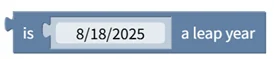
Checks whether the year of the date is a leap year (a year in which February has 29 days). Example: 2024-01-01 → true
- Input: date [Date]
- Output: leap year status [Digital]
Days Between Dates
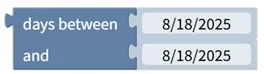
Calculates the difference between two dates (date2 - date1) in days. Example: date1 2023-03-23, date2 2023-06-30 → 99
- Input: date1 [Date], date2 [Date]
- Output: day difference [Number]
Days in Year/Month, Day of Year
Returns the total number of days in the year of the date, the total number of days in its month, or which day of the year the date is. Select days in year, days in month, or day of year from the dropdown. Example: 2023-03-23 → 365 (days in year)
- Input: date [Date]
- Output: days in year, days in month, or day of year [Number]
Date Range Check

Tests whether start date ≤ check date ≤ end date. Both end dates are included in the range. Example: 2023-01-01 ≤ 2023-03-23 ≤ 2023-12-31 → true
- Input: start date [Date], check date [Date], end date [Date]
- Output: within range status [Digital]
Seconds Between Times
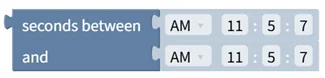
Calculates the difference between two times (time2 - time1) in seconds. Example: time1 09:00:00, time2 11:37:30 → 9,450
- Input: time1 [Time], time2 [Time]
- Output: second difference [Number]
Milliseconds Between Durations
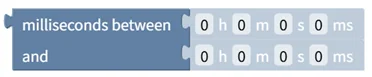
Calculates the difference between two durations (duration2 - duration1) in milliseconds. Example: duration1 0 hours 0 minutes 0 seconds 0 milliseconds, duration2 1 hour 30 minutes 30 seconds 500 milliseconds → 5,430,500
- Input: duration1 [Duration], duration2 [Duration]
- Output: millisecond difference [Number]
Multiply Duration

Multiplies a duration by a number. Example: 3 hours 30 minutes 30 seconds 0 milliseconds × 2 → 7 hours 1 minute 0 seconds 0 milliseconds
- Input: duration [Duration], multiplier [Number]
- Output: scaled duration [Duration]
Duration to Milliseconds

Converts a duration to a total number of milliseconds. Example: 1 hour 30 minutes 30 seconds 500 milliseconds → 5,430,500
- Input: duration [Duration]
- Output: total milliseconds [Number]
Milliseconds to Duration

Converts a number of milliseconds to a duration. Example: 5,430,500 milliseconds → 1 hour 30 minutes 30 seconds 500 milliseconds
- Input: milliseconds [Number]
- Output: duration [Duration]
Text
Creates and manipulates text. Positions count from 1, and 0 is returned when nothing is found. The length of a text is a character count, not a byte count, so a Korean syllable also counts as one character. Blocks that take a position let you count from the start or from the end. Change Case and Check Case apply to letters of the English alphabet only.
Text

Outputs a text constant. Enter the content directly in the block's field.
- Input: none
- Output: text [Text]
Create Text With
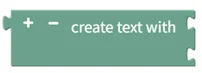
Joins several texts into one. Use the gear button to add or remove entries. Example: "A", "B", "C" → "ABC"
- Input: text1 [Text], text2 [Text] …
- Output: joined text [Text]
Is Empty
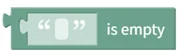
Returns true if the text is empty, false otherwise.
- Input: text [Text]
- Output: empty status [Digital]
Change Case

Converts the text to UPPER CASE, to lower case, or to Title Case. Applies to letters of the English alphabet only.
- Input: text [Text]
- Output: converted text [Text]
Trim Spaces

Removes spaces from both sides, the left side, or the right side of the text, as selected.
- Input: text [Text]
- Output: trimmed text [Text]
Length of Text
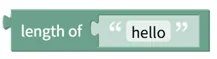
Returns the number of characters in the text. Example: length of "hello" → 5
- Input: text [Text]
- Output: character count [Number]
Find Text

Finds the first or last position where the search text appears in the source text. Positions start at 1, and 0 is returned if not found. Example: first position of "lo" in "hello" → 4
- Input: source text [Text], search text [Text]
- Output: position [Number]
Get Substring

Extracts the specified number of characters starting at a position counted from the start or the end. Example: extract 2 characters from "hello" starting at position 2 from the start → "el"
- Input: source text [Text], start position [Number], character count [Number]
- Output: extracted text [Text]
Insert Text

Inserts other text at the specified position in the text. Example: insert "XX" into "hello" at position 3 from the start → "heXXllo"
- Input: original text [Text], position [Number], text to insert [Text]
- Output: modified text [Text]
Delete Text

Deletes the specified number of characters starting at the specified position. Example: delete 2 characters from "hello" starting at position 2 from the start → "hlo"
- Input: original text [Text], start position [Number], character count [Number]
- Output: modified text [Text]
Replace Text Range

Replaces the specified range of the text with other text. Example: replace 2 characters in "hello" starting at position 2 from the start with "i" → "hilo"
- Input: original text [Text], start position [Number], character count [Number], replacement text [Text]
- Output: modified text [Text]
Is Numeric
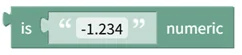
Checks whether the text is a valid number. Integers, decimals, and negative numbers are all recognized. Example: "-123.45" → true
- Input: text [Text]
- Output: numeric status [Digital]
Find Digits/Non-digits

Finds the first or last position where digits or non-digits appear in the text. Positions start at 1, and 0 is returned if not found. Example: first position of digits in "abc123" → 4
- Input: text [Text]
- Output: position [Number]
Check Case

Checks whether all letters in the text are uppercase or lowercase. Non-letter characters are ignored.
- Input: text [Text]
- Output: case match [Digital]
Pad Text

Pads the left or right side of the text with a character until it reaches the target length. Example: pad "123" with "0" on the left to length 6 → "000123"
- Input: original text [Text], target length [Number], padding character [Text]
- Output: padded text [Text]
Find and Replace

Replaces occurrences of the search text with other text. Select all, first, or last to choose which occurrences are replaced. Example: replace all "l" in "hello" with "r" → "herro"
- Input: original text [Text], search text [Text], replacement text [Text]
- Output: modified text [Text]
Byte Arrays
Blocks for binary data. A byte array constant is entered as hexadecimal values separated by spaces (for example, 0A 0B 0C). Indexes count from 0, and blocks that change an array return the modified byte array as their output. Blocks that take out a single byte output a decimal number in the range 0-255 (for example, 0x0C → 12).
Byte Array Input
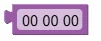
Creates a byte array constant. Enter the bytes as hexadecimal values separated by spaces (for example, 0A 0B 0C).
- Input: none
- Output: byte array [Byte Array]
Size of Byte Array
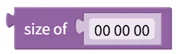
Returns the size (number of bytes) of the byte array. Example: [0A, 0B, 0C] → 3
- Input: byte array [Byte Array]
- Output: array size [Number]
Get Byte at Index

Gets the byte value at the specified index. Indexes start at 0. Example: array [0A, 0B, 0C, 0D], index 2 → 12 (0x0C)
- Input: byte array [Byte Array], index [Number]
- Output: byte value [Number]
Set Byte at Index

Sets the byte at the specified index to a new value. Indexes start at 0; the original array is not modified and a modified array is returned. Example: array [0A, 0B, 0C, 0D], index 2, value 14 → [0A, 0B, 0E, 0D]
- Input: byte array [Byte Array], index [Number], byte value [Number]
- Output: modified byte array [Byte Array]
Append Byte

Appends one byte to the end of the byte array. Example: array [0A, 0B, 0C], value 13 → [0A, 0B, 0C, 0D]
- Input: byte array [Byte Array], byte value [Number]
- Output: extended byte array [Byte Array]
Remove Last Byte
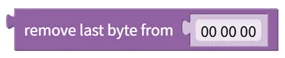
Removes the last byte from the byte array. Example: [0A, 0B, 0C, 0D] → [0A, 0B, 0C]
- Input: byte array [Byte Array]
- Output: shortened byte array [Byte Array]
Insert Byte at Index

Inserts one byte at the specified index. Indexes start at 0. Example: array [0A, 0B, 0C, 0D], index 2, value 14 → [0A, 0B, 0E, 0C, 0D]
- Input: byte array [Byte Array], index [Number], byte value [Number]
- Output: modified byte array [Byte Array]
Remove Bytes from Index

Removes the specified number of bytes starting at the specified index. Indexes start at 0. Example: array [0A, 0B, 0C, 0D], index 1, count 2 → [0A, 0D]
- Input: byte array [Byte Array], start index [Number], byte count [Number]
- Output: shortened byte array [Byte Array]
Reverse Bytes from Index

Reverses the order of the bytes within the specified range. Indexes start at 0. Example: array [0A, 0B, 0C, 0D], index 1, count 2 → [0A, 0C, 0B, 0D]
- Input: byte array [Byte Array], start index [Number], byte count [Number]
- Output: modified byte array [Byte Array]
Get First/Last Byte
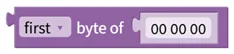
Gets the first or last byte of the byte array. Example: first byte of [0A, 0B, 0C] → 10 (0x0A)
- Input: byte array [Byte Array]
- Output: byte value [Number]
Extract Bytes from Index

Extracts the specified range as a new byte array. Indexes start at 0. Example: array [0A, 0B, 0C, 0D], index 1, count 2 → [0B, 0C]
- Input: byte array [Byte Array], start index [Number], byte count [Number]
- Output: extracted byte array [Byte Array]
Replace Bytes at Index

Overwrites the bytes starting at the specified index with the contents of another byte array. Indexes start at 0. Example: original [0A, 0B, 0C, 0D], index 1, replacement [0E, 0F] → [0A, 0E, 0F, 0D]
- Input: original byte array [Byte Array], start index [Number], replacement byte array [Byte Array]
- Output: modified byte array [Byte Array]
Insert Byte Array at Index

Inserts another byte array at the specified index. Indexes start at 0. Example: original [0A, 0B, 0C, 0D], index 2, insert [0E, 0F] → [0A, 0B, 0E, 0F, 0C, 0D]
- Input: original byte array [Byte Array], index [Number], byte array to insert [Byte Array]
- Output: modified byte array [Byte Array]
Concatenate Byte Arrays

Appends the second byte array to the end of the first. Example: first [0A, 0B], second [0C, 0D] → [0A, 0B, 0C, 0D]
- Input: first byte array [Byte Array], second byte array [Byte Array]
- Output: concatenated byte array [Byte Array]
Lists
Creates, looks up, and manipulates lists. Items can be of any type; positions count from 1, and 0 is returned when nothing is found. Blocks that take a position offer the position modes # (from the start), # from end, first, last, and random.
Create List With
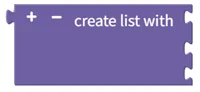
Creates a list from the given items. Use the gear button to add items, or remove them all to create an empty list. Example: "apple", "banana", "grape" → ["apple", "banana", "grape"]
- Input: item1 [Any type], item2 [Any type] …
- Output: list [List]
Create List with Item Repeated

Creates a list consisting of the same item repeated the specified number of times. Example: "hello" repeated 3 times → ["hello", "hello", "hello"]
- Input: item [Any type], repeat count [Number]
- Output: list [List]
Length of List
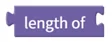
Returns the number of items in the list. Example: ["apple", "banana", "grape"] → 3
- Input: list [List]
- Output: number of items [Number]
Is Empty List

Returns true if the list is empty, false otherwise. Example: [] → true, ["apple"] → false
- Input: list [List]
- Output: empty status [Digital]
Find Item in List

Returns the position of the first or last occurrence of the item in the list. Positions start at 1, and 0 is returned if the item is not found. Example: first occurrence of "apple" in ["apple", "banana", "apple"] → 1
- Input: list [List], item [Any type]
- Output: item position [Number]
Get/Remove Item from List

Gets, gets and removes, or removes the item at the specified position. Positions start at 1, and #1 is the first position. get returns the item without modifying the original list; get and remove returns the item and removes it from the list; remove removes the item and has no return value.
- Input: list [List], (position [Number])
- Output: item [Any type], or none for remove
Set/Insert Item in List

Sets or inserts an item at the specified position. Positions start at 1, and #1 is the first position. set replaces the existing item with the new item; insert at places the new item between the existing items. Example: insert "X" at position 2 in ["A", "B", "C"] → ["A", "X", "B", "C"]
- Input: list [List], (position [Number]), item [Any type]
- Output: none
Get Sub-list

Extracts the items from the start position to the end position as a new list. Both end positions are included. Example: from position 2 to 4 in ["A", "B", "C", "D", "E"] → ["B", "C", "D"]
- Input: original list [List], start position [Number], end position [Number]
- Output: extracted list [List]
Split Text/Join List

make list from text splits the text at each delimiter into a list; make text from list joins the items into one text with the delimiter between them. The delimiter is custom, newline, or tab. Example: "apple,banana,grape" split by "," → ["apple", "banana", "grape"]
- Input: text [Text], delimiter [Text] or list [List], delimiter [Text]
- Output: list [List] or text [Text]
Sort List

Returns a sorted copy of the list. The sort type is numeric, alphabetic, or alphabetic, ignore case, and the order is ascending or descending. Example: [3, 1, 4, 1, 5] numeric ascending → [1, 1, 3, 4, 5]
- Input: original list [List]
- Output: sorted list [List]
Type Conversion
Conversion between variable types. The blocks that convert text to a number, date, time, or duration raise an error at execution time when the text is not in the expected format. Integer conversion selects the sign and size (8-, 16-, or 32-bit); values outside the range lose their overflowing bits and become a different value (for example, 172 converted to a signed 8-bit integer → -84). The blocks that convert between integers and byte arrays or binary/hexadecimal text treat the value as a 32-bit unsigned integer, so the result is always 4 bytes (for example, 65450 → 00 00 FF AA).
Convert to Number
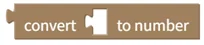
Converts a digital, number, or text value to a number. Text that cannot be converted causes an error. Example: true → 1, false → 0, "123" → 123, "ABC" → error
- Input: value [Digital, Number, Text]
- Output: converted number [Number]
Convert to Text
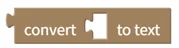
Converts a value of any type to text. Example: true → "true", 123 → "123", 2023-03-23 → "2023-03-23"
- Input: value [Any type]
- Output: converted text [Text]
Convert to Digital
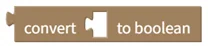
Converts a number to a digital value (true or false). Example: 1 → true, 0 → false
- Input: value [Digital, Number]
- Output: converted digital value [Digital]
Convert to Integer Type

Converts the input value to the selected integer type: signed 8-bit, unsigned 8-bit, signed 16-bit, unsigned 16-bit, signed 32-bit, or unsigned 32-bit. Example: convert 172 to a signed 8-bit integer → -84
- Input: value [Number]
- Output: converted integer value [Number]
Convert Text to Date

Converts text to a date. Text that is not in a valid date format causes an error. Example: "2022-12-01" → 2022-12-01
- Input: text [Text]
- Output: converted date [Date]
Convert Text to Time

Converts text to a time. Text that is not in a valid time format causes an error. Example: "14:27:30" → 14:27:30
- Input: text [Text]
- Output: converted time [Time]
Convert Text to Duration

Converts text to a duration. The duration format is "0h 0m 0s 0ms" or "0:0:0:0"; text that is not in either format causes an error. Example: "12:34:56:789" → 12 hours 34 minutes 56 seconds 789 milliseconds
- Input: text [Text]
- Output: converted duration [Duration]
Convert Text to Color
Converts text to a color value. The input text must be in hexadecimal color format, such as "#FF0000" for red. Shown in the toolbox for project version 0.16.0 and later. Example: "#00FF00" → green
- Input: text [Text]
- Output: color value [Color]
Convert Byte Array to Integer

Converts a byte array to an unsigned 32-bit integer. The first byte of the byte array is the MSB (Most Significant Byte). Example: FF AA → 65450
- Input: byte array [Byte Array]
- Output: converted integer value [Number]
Convert Integer to Byte Array

Converts an integer to a byte array. The input value is automatically converted to a 32-bit integer, and the first byte of the byte array is the MSB. Example: 65450 → 00 00 FF AA
- Input: integer [Number]
- Output: converted byte array [Byte Array]
Convert Binary Text to Integer

Converts binary text to an unsigned 32-bit integer. The first bit is the MSB (Most Significant Bit), and the text may contain spaces. Example: "1111 1111 1010 1010" → 65450
- Input: binary text [Text]
- Output: converted integer value [Number]
Convert Integer to Binary Text

Converts an integer to 32-digit binary text. The input value is automatically converted to a 32-bit integer, and the first bit is the MSB. Example: 65450 → "00000000000000001111111110101010"
- Input: integer [Number]
- Output: converted binary text [Text]
Convert Hexadecimal Text to Integer

Converts hexadecimal text to an unsigned 32-bit integer. The first byte is the MSB, and the input text must be in one of four formats: no separator (00AAFF), space-separated (00 AA FF), comma-separated (00, AA, FF), or colon-separated (00:AA:FF). Example: "FF AA" → 65450
- Input: hexadecimal text [Text]
- Output: converted integer value [Number]
Convert Integer to Hexadecimal Text

Converts an integer to hexadecimal text. The input value is automatically converted to a 32-bit integer, and the first byte is the MSB. Example: 65450 → "00 00 FF AA"
- Input: integer [Number]
- Output: converted hexadecimal text [Text]
Convert Byte Array to UTF-8 Text

Interprets a byte array as UTF-8 text. Example: EA B0 80 EB 82 98 EB 8B A4 → "가나다"
- Input: byte array [Byte Array]
- Output: UTF-8 text [Text]
Convert UTF-8 Text to Byte Array

Creates a byte array by encoding text as UTF-8. Example: "가나다" → EA B0 80 EB 82 98 EB 8B A4
- Input: UTF-8 text [Text]
- Output: byte array [Byte Array]
Convert Hexadecimal Text to Byte Array

Converts hexadecimal text to a byte array. The input text must be in one of four formats: no separator (00AAFF), space-separated (00 AA FF), comma-separated (00, AA, FF), or colon-separated (00:AA:FF). Example: "AF 00 B0" → AF 00 B0
- Input: hexadecimal text [Text]
- Output: converted byte array [Byte Array]
Convert Byte Array to Hexadecimal Text

Converts a byte array to space-separated hexadecimal text. Example: AF 00 B0 → "AF 00 B0"
- Input: byte array [Byte Array]
- Output: converted hexadecimal text [Text]
Unit Conversion
Converts length, pressure, energy, speed, temperature, astronomical distance, angle, coordinates (degrees/minutes/seconds), and compass direction. The input and output units are selected from the block's dropdowns. Use the Angle Unit Conversion block to match degrees and radians in calculations that mix them, such as the trigonometric functions and coordinate conversion.
Length Unit Conversion

Converts between units of length. Supported units: meters (m), inches (in), feet (ft), yards (yd), miles (mi), nautical miles (nm), fathoms (ftm). Example: 1 meter → 39.37 inches
- Input: length in the input unit [Number]
- Output: length in the output unit [Number]
Pressure Unit Conversion

Converts between units of pressure. Supported units: meters H2O (mH2O), Torr, technical atmospheres (at), atmospheres (atm), Pascals (Pa), bars (bar). Example: 1 atmosphere → 101,325 Pascals
- Input: pressure in the input unit [Number]
- Output: pressure in the output unit [Number]
Energy Unit Conversion

Converts between units of energy. Supported units: Joules (J), calories (C), watt-hours (Wh). Example: 1 calorie → 4.184 Joules
- Input: energy in the input unit [Number]
- Output: energy in the output unit [Number]
Speed Unit Conversion
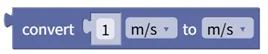
Converts between units of speed. Supported units: m/s, km/h, knots (kn), mph. Example: 100 km/h → 27.78 m/s
- Input: speed in the input unit [Number]
- Output: speed in the output unit [Number]
Temperature Unit Conversion

Converts between temperature scales. Supported units: Kelvin (K), Celsius (℃), Fahrenheit (F), Rømer (°Rø), Rankine (°R). Example: 20℃ → 68°F
- Input: temperature in the input unit [Number]
- Output: temperature in the output unit [Number]
Astronomical Distance Unit Conversion

Converts between astronomical distance units. Supported units: meters (m), astronomical units (AU), parsecs (pc), light-years (ly). Example: 1 light-year → 9.461 × 10¹⁵ meters
- Input: distance in the input unit [Number]
- Output: distance in the output unit [Number]
Angle Unit Conversion

Converts an angle between degrees (°) and radians (rad). Degrees to radians multiplies by π/180; radians to degrees multiplies by 180/π. Example: 90° → 1.571 radians
- Input: angle in the input unit [Number]
- Output: angle in the output unit [Number]
Convert Coordinate DMS to Decimal Degrees

Converts a coordinate in degrees, minutes, and seconds to decimal degrees. Example: 37° 33′ 51.17″ → 37.564214°
- Input: degrees [Number], minutes [Number], seconds [Number]
- Output: degrees [Number]
Convert Decimal Degrees to DMS

Converts decimal degrees to degrees, minutes, and seconds and returns them as a list. Example: 37.564214° → [37, 33, 51.17]
- Input: degrees [Number]
- Output: [degrees, minutes, seconds] [List]
Convert Angle to Compass Direction

Converts an angle to one of the eight compass directions: N (north), NE (northeast), E (east), SE (southeast), S (south), SW (southwest), W (west), NW (northwest). Example: 45° → "NE", 180° → "S"
- Input: angle [Number]
- Output: compass direction [Text]
Science
Calculates sun and moon rise/set times, azimuth, and altitude, psychrometric (moist air) properties, standard atmospheric pressure, and sea level pressure correction. The output item is selected from the block's dropdown, and the output type is a time or a number depending on the selection. Latitude and longitude are in degrees (°), altitude in meters (m), temperature in Celsius (°C), and pressure in Pascals (Pa).
Sun Rise/Set/Noon Time, Azimuth, Altitude
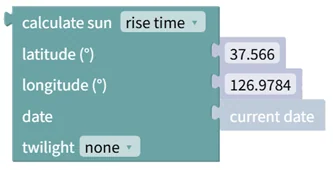
Calculates one of the sun's rise time, set time, noon time (the times on a given date when the sun rises, sets, and reaches its highest point), azimuth (its horizontal direction angle at a given time), or altitude (its vertical angle at a given time). The twilight option is none, civil, nautical, or astronomical.
- Input: latitude (°) [Number], longitude (°) [Number], date [Date], time [Time]
- Output: time [Time] or angle [Number]
Moon Rise/Set/Noon Time, Azimuth, Altitude, Phase
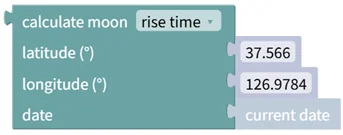
Calculates one of the moon's rise time, set time, noon time, azimuth, altitude, or phase. The phase expresses the moon's shape as a number on a scale of 0 (new moon), 0.5 (half moon), and 1 (full moon).
- Input: latitude (°) [Number], longitude (°) [Number], date [Date], time [Time]
- Output: time [Time] or angle/phase value [Number]
Air Humidity/Temperature Properties Calculation
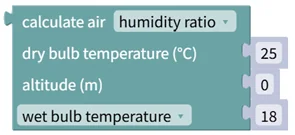
Calculates the properties of moist air. The 13 calculable properties are humidity ratio, wet bulb temperature, dew point temperature, relative humidity, vapor pressure, enthalpy, specific volume, density, degree of saturation, saturation vapor pressure, vapor pressure deficit, absolute humidity, and humidity deficit. The input conditions are the dry bulb temperature and altitude plus one of wet bulb temperature, dew point temperature, or relative humidity, selected from the dropdown.
- Input: dry bulb temperature (°C) [Number], altitude (m) [Number], wet bulb temperature or dew point temperature or relative humidity [Number]
- Output: calculated air property value [Number]
Standard Atmospheric Pressure/Temperature at Altitude
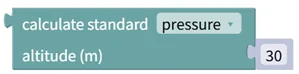
Calculates the standard pressure or temperature at a specific altitude using the International Standard Atmosphere (ISA) model. Example: altitude 1000 m → standard pressure 89,875 Pa, standard temperature 8.5°C
- Input: altitude (m) [Number]
- Output: standard pressure (Pa) or standard temperature (°C) [Number]
Station Pressure and Sea Level Pressure Conversion
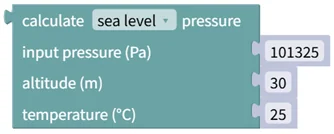
Converts between station pressure and sea level pressure. With sea level pressure selected, returns the pressure measured at a specific altitude corrected to sea level; with station pressure selected, returns the sea level pressure converted to the actual atmospheric pressure at a specific altitude. Used in meteorological observation to correct for pressure differences caused by altitude.
- Input: pressure (Pa) [Number], altitude (m) [Number], temperature (°C) [Number]
- Output: converted pressure (Pa) [Number]
Bits/Bytes
Blocks that handle integers at the bit and byte level. Every input value is automatically converted to a 4-byte (32-bit) integer; bit and byte positions count from 0, and position 0 is the LSB (Least Significant Bit/Byte). In the lists produced by the decompose blocks and accepted by the combine blocks, the first item is the LSB; items of a bit list are [Digital] and items of a byte or word list are [Number]. Connect a Create List With block to a combine block to supply its items.
Bitwise AND / OR / XOR
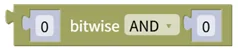
Performs a bitwise AND, OR, or exclusive OR (XOR) on two input values. The input values are automatically converted to integers.
- Input: value1 [Number], value2 [Number]
- Output: calculated value [Number]
Bitwise NOT
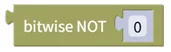
Inverts every bit of the input value (NOT). The input value is automatically converted to an integer.
- Input: value [Number]
- Output: calculated value [Number]
Bit Shift / Rotate

Shifts (shift) or rotates (rotate) the bits of the input value left or right by the specified number of bits. The input value is automatically converted to an integer.
- Input: value [Number], number of bits to shift or rotate [Number]
- Output: result value [Number]
Toggle Bits

Toggles n bits starting at the specified bit position (true ↔ false). The input value is automatically converted to a 4-byte (32-bit) integer; positions start at 0, and position 0 is the LSB.
- Input: value [Number], start position [Number], count to toggle [Number]
- Output: calculated value [Number]
Count True Bits
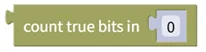
Counts the bits that are true (1) in the input value. The input value is automatically converted to a 4-byte (32-bit) integer.
- Input: value [Number]
- Output: number of true bits [Number]
Decompose to Bit List
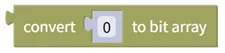
Decomposes the input value into a list of bits. The input value is automatically converted to a 4-byte (32-bit) integer, and the first item of the list is the LSB. Example: decimal 123 → binary 01111011 → [true, true, false, true, true, true, true, false]
- Input: value [Number]
- Output: decomposed bits [List]
Decompose to Byte List
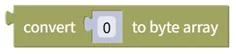
Decomposes the input value into a list of bytes. The input value is automatically converted to a 4-byte integer, and the first item of the list is the LSB (Least Significant Byte).
- Input: value [Number]
- Output: decomposed bytes [List]
Decompose to Word (2-byte) List
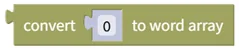
Decomposes the input value into a list of 2-byte words. The input value is automatically converted to a 4-byte integer, and the first item of the list is the least significant word.
- Input: value [Number]
- Output: decomposed words [List]
Combine Bit List
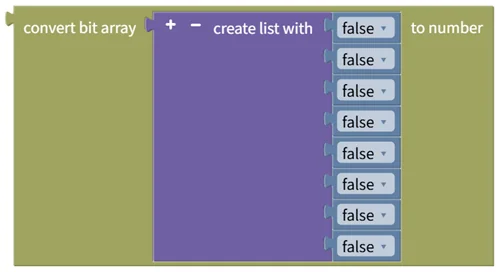
Combines a list of bits into a 4-byte (32-bit) integer. The first item of the list is the LSB. Example: [true, true, false, true, true, true, true, false] → binary 01111011 → decimal 123
- Input: bit list [List]
- Output: combined integer value [Number]
Combine Byte List
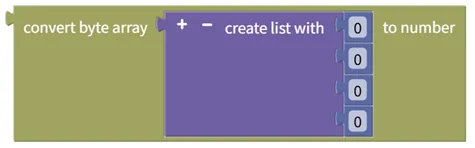
Combines a list of bytes into a 4-byte integer. The first item of the list is the LSB (Least Significant Byte).
- Input: byte list [List]
- Output: combined integer value [Number]
Combine Word (2-byte) List

Combines a list of 2-byte words into a 4-byte integer. The first item of the list is the least significant word.
- Input: word list [List]
- Output: combined integer value [Number]
Extract Bits

Extracts n bits starting at the specified bit position and returns them as a number. The input value is automatically converted to a 4-byte (32-bit) integer; positions start at 0, and position 0 is the LSB.
- Input: value [Number], position [Number], count [Number]
- Output: extracted value [Number]
Extract Bytes

Extracts n bytes starting at the specified byte position and returns them as a number. The input value is automatically converted to a 4-byte integer; positions start at 0, and position 0 is the LSB (Least Significant Byte).
- Input: value [Number], position [Number], count [Number]
- Output: extracted value [Number]
Reverse Bit Order

Reverses the order of the specified number of bits starting at the specified bit position. The input value is automatically converted to a 4-byte (32-bit) integer; positions start at 0, and position 0 is the LSB.
- Input: value [Number], position [Number], count [Number]
- Output: calculated value [Number]
Reverse Byte Order

Reverses the order of the specified number of bytes starting at the specified byte position. The input value is automatically converted to a 4-byte integer; positions start at 0, and position 0 is the LSB (Least Significant Byte).
- Input: value [Number], position [Number], count [Number]
- Output: calculated value [Number]
Reverse Word (2-byte) Order

Swaps the high and low 2-byte words of the input value. The input value is automatically converted to a 4-byte integer.
- Input: value [Number]
- Output: calculated value [Number]
Set Bits

Sets n bits starting at the specified bit position to true or false. The input value is automatically converted to a 4-byte (32-bit) integer; positions start at 0, and position 0 is the LSB.
- Input: value [Number], position [Number], count [Number], value [Digital]
- Output: calculated value [Number]
Set Bytes

Sets n bytes starting at the specified byte position to a value in the range 0-255. The input value is automatically converted to a 4-byte integer; positions start at 0, and position 0 is the LSB (Least Significant Byte).
- Input: value [Number], position [Number], count [Number], value [Number]
- Output: calculated value [Number]
Convert Decimal to BCD List

Converts a decimal input value to a BCD (Binary Coded Decimal) list.
- Input: value [Number]
- Output: converted BCD list [List]
Convert BCD List to Decimal
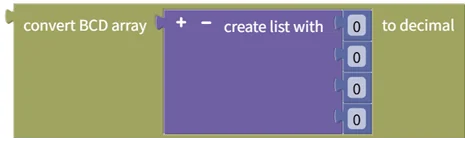
Converts a BCD list to a decimal number.
- Input: BCD list [List]
- Output: converted value [Number]
Complex/Vector
Complex number and 3D vector operations. Complex numbers and 3D vectors are separate data types: create a value with the Create Complex Number or Create 3D Vector block and connect it to the inputs of the other blocks. The argument and the angle between vectors are in radians (rad).
Create Complex Number
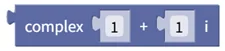
Creates a complex number from a real part and an imaginary part. Example: 3 + 4i
- Input: real part [Number], imaginary part [Number]
- Output: complex number [Complex Number]
Extract Real/Imaginary Part

Extracts the real or imaginary part of a complex number. Example: real part of (3 + 4i) → 3
- Input: complex number [Complex Number]
- Output: real or imaginary part [Number]
Absolute Value

Calculates the absolute value (magnitude) of a complex number. Example: |3 + 4i| → 5
- Input: complex number [Complex Number]
- Output: absolute value [Number]
Norm

Calculates the norm (squared magnitude) of a complex number. Example: norm(3 + 4i) → 25
- Input: complex number [Complex Number]
- Output: norm [Number]
Complex Conjugate

Calculates the complex conjugate. The sign of the imaginary part is reversed. Example: conj(3 + 4i) → 3 - 4i
- Input: complex number [Complex Number]
- Output: complex conjugate [Complex Number]
Compare Complex Numbers

Tests whether two complex numbers are equal. Both the real and imaginary parts must be equal to return true.
- Input: complex number1 [Complex Number], complex number2 [Complex Number]
- Output: equality status [Digital]
Complex Number Argument

Calculates the argument (phase angle) of a complex number in radians: the angle from the positive real axis in the complex plane.
- Input: complex number [Complex Number]
- Output: argument [Number]
Create Complex Number from Polar Form

Creates a complex number from polar form (magnitude and argument). Magnitude r, argument θ → r(cos θ + i sin θ). The argument is in radians.
- Input: magnitude [Number], argument [Number]
- Output: complex number [Complex Number]
Complex Number Arithmetic

Calculates the sum, difference, product, or quotient of two complex numbers.
- Input: complex number1 [Complex Number], complex number2 [Complex Number]
- Output: operation result [Complex Number]
Complex Trigonometric Functions
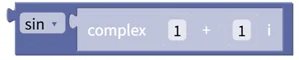
Calculates one of the trigonometric functions sin, cos, tan or the hyperbolic functions sinh, cosh, tanh of a complex number.
- Input: complex number [Complex Number]
- Output: trigonometric function result [Complex Number]
Complex Transcendental Functions

Calculates one of the exponential (e^), natural logarithm (ln), common logarithm (log₁₀), or square root (√) of a complex number.
- Input: complex number [Complex Number]
- Output: transcendental function result [Complex Number]
Complex Number Exponentiation

Raises a complex number to a power. Both the base and the exponent are complex numbers.
- Input: base [Complex Number], exponent [Complex Number]
- Output: exponentiation result [Complex Number]
Complex Number Inverse

Calculates the additive inverse (-z) or the multiplicative inverse (1/z) of a complex number.
- Input: complex number [Complex Number]
- Output: inverse [Complex Number]
Create 3D Vector
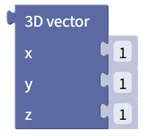
Creates a 3D vector from x, y, and z components.
- Input: x [Number], y [Number], z [Number]
- Output: vector [3D Vector]
Extract Vector Components
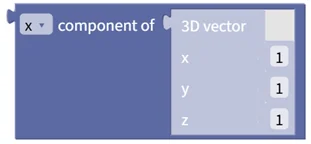
Gets the selected x, y, or z component of a 3D vector.
- Input: vector [3D Vector]
- Output: x, y, or z component of the vector [Number]
Vector Magnitude
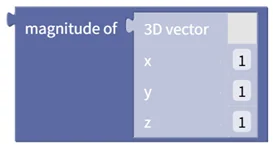
Gets the magnitude (length) of a 3D vector.
- Input: vector [3D Vector]
- Output: vector magnitude [Number]
Unit Vector
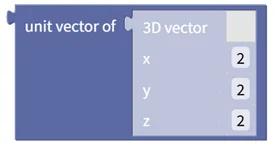
Gets the unit vector of a 3D vector: the vector with the same direction and a magnitude of 1.
- Input: vector [3D Vector]
- Output: unit vector [3D Vector]
Check Zero Vector
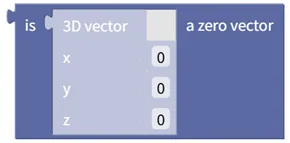
Returns true if all components of the 3D vector are 0, false otherwise.
- Input: vector [3D Vector]
- Output: zero vector status [Digital]
Reverse Vector
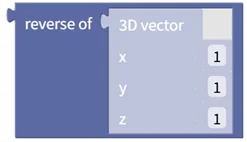
Gets the vector pointing in the opposite direction of the 3D vector.
- Input: vector [3D Vector]
- Output: reversed vector [3D Vector]
Vector Addition/Subtraction
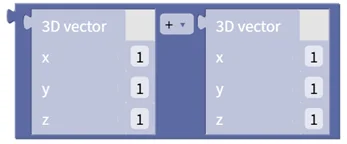
Adds or subtracts two 3D vectors.
- Input: vector1 [3D Vector], vector2 [3D Vector]
- Output: calculated vector [3D Vector]
Angle Between Vectors
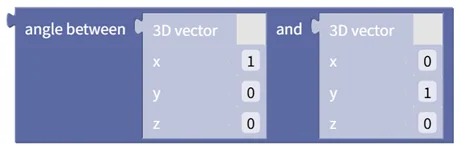
Gets the angle between two 3D vectors. The angle is in radians (rad).
- Input: vector1 [3D Vector], vector2 [3D Vector]
- Output: angle between the two vectors [Number]
Check Vector Parallelism
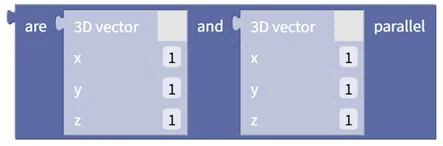
Returns true if two 3D vectors are parallel, false otherwise.
- Input: vector1 [3D Vector], vector2 [3D Vector]
- Output: parallel status of the two vectors [Digital]
Angle Between Vector and Axis
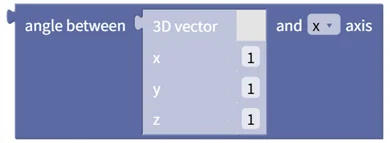
Gets the angle between a 3D vector and the selected x, y, or z axis.
- Input: vector [3D Vector]
- Output: angle between the vector and the selected axis [Number]
Vector Dot Product
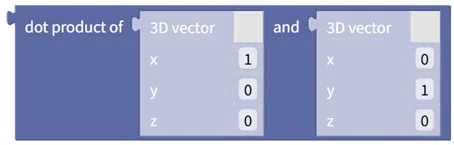
Gets the dot product (inner product) of two 3D vectors. The result is a number.
- Input: vector1 [3D Vector], vector2 [3D Vector]
- Output: dot product of the two vectors [Number]
Vector Cross Product
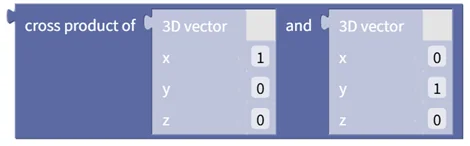
Gets the cross product of two 3D vectors. The result is a 3D vector.
- Input: vector1 [3D Vector], vector2 [3D Vector]
- Output: cross product of the two vectors [3D Vector]
Vector Scalar Multiplication
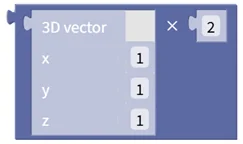
Multiplies a 3D vector by a scalar value.
- Input: vector [3D Vector], scale [Number]
- Output: calculated vector [3D Vector]
JSON
Parses JSON text, looks up and edits JSON objects and JSON arrays, and converts them back to text. A JSON value is one of boolean, number, string, JSON object, or JSON array (null included) and is written as [JSON Value] in the inputs and outputs. Array positions count from 0, and -1 is returned when nothing is found. The editing blocks return the modified JSON object or array as their output, so write the result to a variable or connect it to the next block to keep using it.
Convert Text to JSON Object

Converts (parses) JSON-formatted text into a JSON object.
- Input: text [Text]
- Output: JSON object [JSON Object]
Find JSON Value by Path

Returns the value at the specified path in a JSON structure. The path follows the RFC 6901 JSON Pointer standard: it starts with a slash (/), descends into object members by name, and into array elements by a number that starts at 0. Example: /students/0/name
- Input: JSON structure [JSON Object or JSON Array], path [Text]
- Output: path value [JSON Value]
For example, in the JSON structure below, the value at path /user/profile/contact/phones/1 is "010-9876-5432". Because phones is an array, the second element has the number 1.
{
  "user": {
    "profile": {
      "name": "Alice",
      "contact": {
        "phones": [
          "010-1234-5678",
          "010-9876-5432"
        ],
        "email": "alice@example.com"
      }
    }
  }
}
Check Member Existence in JSON Object

Returns true if a member with the specified name exists in the JSON object, false otherwise.
- Input: JSON object [JSON Object], member name [Text]
- Output: member existence [Digital]
Get JSON Object Member Value

Gets the value of the member with the specified name from a JSON object.
- Input: JSON object [JSON Object], member name [Text]
- Output: member value [JSON Value]
JSON Object Member Count

Returns the number of members in a JSON object.
- Input: JSON object [JSON Object]
- Output: number of members [Number]
Check if JSON Object is Empty
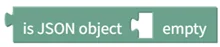
Returns true if the JSON object has no members, false otherwise.
- Input: JSON object [JSON Object]
- Output: empty status [Digital]
JSON Array Size

Returns the size (number of elements) of a JSON array.
- Input: JSON array [JSON Array]
- Output: array size [Number]
Get JSON Array Value at Position

Gets the value at the specified position in a JSON array. Positions start at 0.
- Input: JSON array [JSON Array], position [Number]
- Output: array element value [JSON Value]
Check if JSON Array is Empty
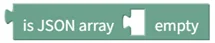
Returns true if the JSON array is empty, false otherwise.
- Input: JSON array [JSON Array]
- Output: empty status [Digital]
Find Value Position in JSON Array

Gets the position where the specified value first appears in a JSON array. Positions start at 0, and -1 is returned if not found.
- Input: JSON array [JSON Array], value to find [JSON Value]
- Output: value position [Number]
Check JSON Value Type

Returns true if the type of the JSON value matches the selected type, false otherwise. The type is boolean, number, string, JSON object, JSON array, or null.
- Input: JSON value [JSON Value]
- Output: type match status [Digital]
Create Empty JSON Object

Creates an empty JSON object with no members.
- Input: none
- Output: empty JSON object [JSON Object]
Add Member to JSON Object
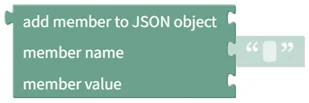
Adds a member with the specified name and value to a JSON object.
- Input: JSON object [JSON Object], member name [Text], member value [JSON Value]
- Output: modified JSON object [JSON Object]
Change JSON Object Member Value
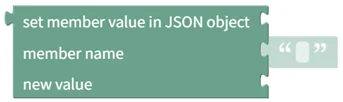
Changes the value of the member with the specified name in a JSON object.
- Input: JSON object [JSON Object], member name [Text], new value [JSON Value]
- Output: modified JSON object [JSON Object]
Delete JSON Object Member

Deletes the member with the specified name from a JSON object.
- Input: JSON object [JSON Object], member name [Text]
- Output: modified JSON object [JSON Object]
Delete All JSON Object Members

Deletes all members from a JSON object.
- Input: JSON object [JSON Object]
- Output: empty JSON object [JSON Object]
Create Empty JSON Array

Creates an empty JSON array with no values.
- Input: none
- Output: empty JSON array [JSON Array]
Add Value to End of JSON Array

Adds a value to the end of a JSON array.
- Input: JSON array [JSON Array], value to add [JSON Value]
- Output: extended JSON array [JSON Array]
Change JSON Array Value
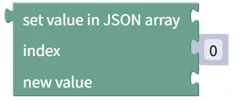
Changes the value at the specified position in a JSON array. Positions start at 0.
- Input: JSON array [JSON Array], position [Number], new value [JSON Value]
- Output: modified JSON array [JSON Array]
Delete Value from JSON Array

Deletes the value at the specified position from a JSON array. Positions start at 0.
- Input: JSON array [JSON Array], position [Number]
- Output: reduced JSON array [JSON Array]
Delete All Values from JSON Array

Deletes all values from a JSON array.
- Input: JSON array [JSON Array]
- Output: empty JSON array [JSON Array]
Convert JSON Object to Text

Converts a JSON object to JSON-formatted text.
- Input: JSON object [JSON Object]
- Output: JSON text [Text]
XML
Parses XML text, looks up and edits the name, value, attributes, and child elements of an XML element, and converts it back to text. The editing blocks return the modified XML element as their output.
[2] counts from 1, while the position of the
Get/Delete XML Child Element by Position blocks counts from 0. The same second child is
phone[2] in XPath but position 1 in the position blocks.
Convert Text to XML Element

Converts (parses) XML-formatted text into an XML element.
- Input: text [Text]
- Output: XML element [XML Element]
Find XML Value by Path

Returns the value, attribute, or element at the specified XPath in an XML element. Path examples: /bookstore/books[1]/title, /book/@id. Bracketed numbers in XPath count from 1.
- Input: XML element [XML Element], path [Text]
- Output: path value [Digital, Number, Text, or XML Element]
For example, in the XML structure below, the value at path /user/profile/contact/phones/phone[2] is "010-9876-5432".
<user>
  <profile>
    <name>Alice</name>
    <contact>
      <phones>
        <phone>010-1234-5678</phone>
        <phone>010-9876-5432</phone>
      </phones>
      <email>alice@example.com</email>
    </contact>
  </profile>
</user>
Create XML Element
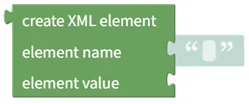
Creates a new XML element with a name and a value.
- Input: element name [Text], element value [Digital, Number, Text]
- Output: new XML element [XML Element]
Get XML Element Name

Returns the name (tag name) of an XML element.
- Input: XML element [XML Element]
- Output: element name [Text]
Change XML Element Name

Changes the name (tag name) of an XML element.
- Input: XML element [XML Element], new name [Text]
- Output: modified XML element [XML Element]
Check if XML Element is Empty

Returns true if the XML element has neither a value nor child elements, false otherwise.
- Input: XML element [XML Element]
- Output: empty status [Digital]
Check if XML Element Has Text Value

Returns true if the XML element has a text value, false otherwise.
- Input: XML element [XML Element]
- Output: value existence [Digital]
Get XML Element Text Value

Gets the text value of an XML element. Returns empty text if there is no value or the element only contains child elements.
- Input: XML element [XML Element]
- Output: element value [Text]
Change XML Element Text Value

Changes the text value of an XML element.
- Input: XML element [XML Element], new value [Digital, Number, Text]
- Output: modified XML element [XML Element]
Check if XML Element Has Attributes

Returns true if the XML element has one or more attributes, false if it has none.
- Input: XML element [XML Element]
- Output: attribute existence [Digital]
Check if XML Element Has Specific Attribute

Returns true if the XML element has an attribute with the specified name, false otherwise.
- Input: XML element [XML Element], attribute name [Text]
- Output: attribute existence [Digital]
Get XML Attribute Value

Gets the value of the attribute with the specified name from an XML element.
- Input: XML element [XML Element], attribute name [Text]
- Output: attribute value [Text]
Add Attribute to XML Element
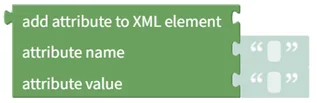
Adds an attribute with the specified name and value to an XML element.
- Input: XML element [XML Element], attribute name [Text], attribute value [Text]
- Output: modified XML element [XML Element]
Change XML Attribute Value
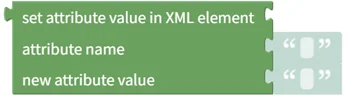
Changes the value of the attribute with the specified name in an XML element.
- Input: XML element [XML Element], attribute name [Text], new value [Text]
- Output: modified XML element [XML Element]
Delete XML Attribute

Deletes the attribute with the specified name from an XML element.
- Input: XML element [XML Element], attribute name [Text]
- Output: modified XML element [XML Element]
Delete All XML Attributes

Deletes all attributes from an XML element.
- Input: XML element [XML Element]
- Output: modified XML element [XML Element]
Check if XML Element Has Child Elements

Returns true if the XML element has one or more child elements, false if it has none.
- Input: XML element [XML Element]
- Output: child existence [Digital]
Check if XML Element Has Specific Child Element

Returns true if a child element with the specified name exists in the XML element, false otherwise.
- Input: XML element [XML Element], child name [Text]
- Output: child existence [Digital]
XML Element Child Count

Returns the number of child elements in an XML element.
- Input: XML element [XML Element]
- Output: child count [Number]
Get XML Child Element by Name

Gets the child element with the specified name from an XML element.
- Input: XML element [XML Element], child name [Text]
- Output: child XML element [XML Element]
Get XML Child Element by Position

Gets the child element at the specified position from an XML element. Positions start at 0.
- Input: XML element [XML Element], child position [Number]
- Output: child XML element [XML Element]
Add Child Element to XML Element

Adds a child element to an XML element.
- Input: XML element [XML Element], child element [XML Element]
- Output: modified XML element [XML Element]
Delete XML Child Element by Name

Deletes the first child element with the specified name from an XML element. Even when several children share the name, only the first one is deleted.
- Input: XML element [XML Element], child name [Text]
- Output: modified XML element [XML Element]
Delete XML Child Element by Position

Deletes the child element at the specified position from an XML element. Positions start at 0.
- Input: XML element [XML Element], child position [Number]
- Output: modified XML element [XML Element]
Delete All XML Child Elements

Deletes all child elements from an XML element.
- Input: XML element [XML Element]
- Output: modified XML element [XML Element]
Convert XML Element to Text

Converts an XML element to text. Turn on the checkbox to add an XML declaration on the first line of the text.
- Input: XML element [XML Element], add XML declaration [Checkbox]
- Output: XML text [Text]
Color
Blocks that create color values and extract their components. RGB components range from 0 to 255; in HSV, hue (H) ranges from 0 to 360 and saturation (S) and value (V) from 0 to 100.
Color Picker

Outputs the color constant chosen from the color picker (palette).
- Input: none
- Output: color [Color]
Random Color

Generates a random color.
- Input: none
- Output: color [Color]
RGB Color
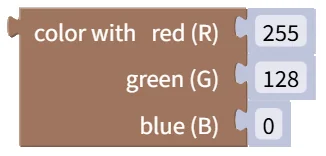
Creates a color from red (R), green (G), and blue (B) values. Each value ranges from 0 to 255. Example: red 255, green 0, blue 0 → red
- Input: red (R) [Number], green (G) [Number], blue (B) [Number]
- Output: color [Color]
HSV Color
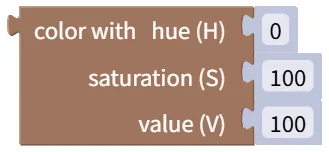
Creates a color from hue (H), saturation (S), and value (V). Hue ranges from 0 to 360 degrees; saturation and value range from 0 to 100. Example: hue 0, saturation 100, value 100 → red
- Input: hue (H) [Number], saturation (S) [Number], value (V) [Number]
- Output: color [Color]
Blend Colors
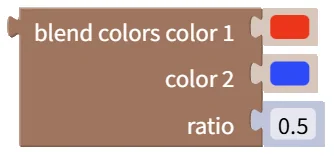
Blends two colors at the specified ratio (0.0 to 1.0). A ratio of 0 gives the first color and 1 gives the second. Example: red and blue blended at 0.5 → purple
- Input: color 1 [Color], color 2 [Color], ratio [Number]
- Output: blended color [Color]
Get RGB Component from Color

Extracts the selected red (R), green (G), or blue (B) component from a color. The return value ranges from 0 to 255. Example: red (R) of the color red → 255
- Input: color [Color]
- Output: component value [Number]
Get HSV Component from Color

Extracts the selected hue (H), saturation (S), or value (V) component from a color. Hue ranges from 0 to 360; saturation and value range from 0 to 100. Example: hue (H) of the color red → 0
- Input: color [Color]
- Output: component value [Number]
Local Variables
Temporary variables scoped to this block editor. They are separate from project variables and are not visible in the block editor of another value input or on dashboards. Make values that must be shared into project variables instead (Part 6).
Create Variable

Creates a local variable. Local variables can only be used within the current block editor and serve purposes such as temporarily storing intermediate results.
- Input: none
- Output: none
Set Variable Value
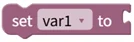
Writes a value to a local variable.
- Input: value to set in the variable [Any type]
- Output: none
Get Variable Value

Reads the value stored in a local variable.
- Input: none
- Output: variable value [Any type]
Change Variable by Number
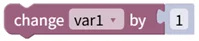
Reads the value stored in a local variable, adds the input number to it, and stores the result back. Entering a negative number subtracts.
- Input: value to add [Number]
- Output: none
Local Functions
Functions defined and called within this block editor. Functions with and without a return value can be defined, and input parameters are added with the block's gear button. A defined function is run from another block in the same editor with a call block, which also comes in two forms depending on whether a value is returned. The Return If block can only be used inside a local function.
Function (no return value)
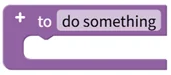
Creates a local function without a return value. Input parameters can be added with the gear button, and the created function is called and run from other blocks within the current block editor.
- Input: none
- Output: none
Function (with return value)
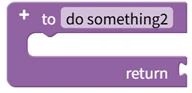
Creates a local function with a return value. Input parameters can be added with the gear button, and the value connected to the return input at the bottom of the block becomes the function's return value.
- Input: return value [Any type]
- Output: none
Return If

Returns a value part-way through the function when the condition is satisfied. This block can only be used inside a local function block.
- Input: condition [Digital], return value [Any type]
- Output: none
Function Call (no return value)

Runs a previously defined local function that has no return value.
- Input: the parameters defined in the function (if any)
- Output: none
Function Call (with return value)
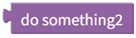
Runs a previously defined local function that has a return value and returns its result.
- Input: the parameters defined in the function (if any)
- Output: function return value [Any type]