Live Monitoring
The Live tab shows cameras as tiles.
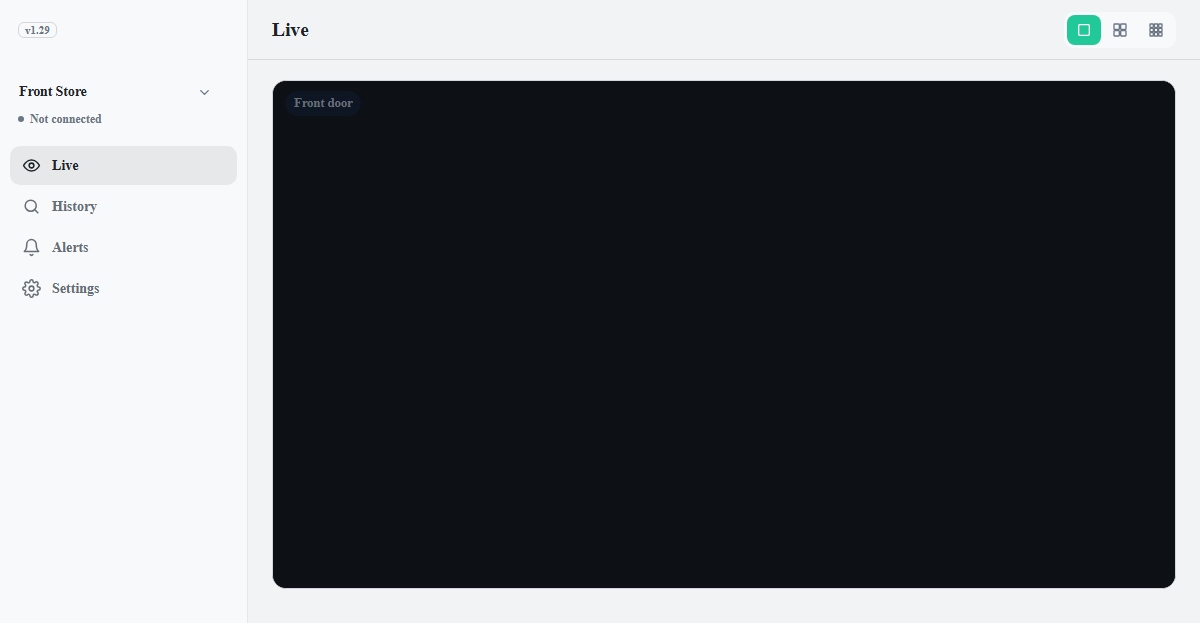
- Click a tile to open the enlarged view.
- On a desktop, the layout buttons to the right of the title arrange 1 to 3 tiles per row. On a phone, the same buttons at the right of the top bar offer 1 or 2.
- A switched-off camera shows a camera icon instead of video and cannot be enlarged. Cameras are switched on and off in Settings > Cameras.
- While the status is anything other than Running (for example Stopped or Connecting…), video is not shown and tiles cannot be enlarged.
Zooming in the enlarged view
The enlarged view has the camera name and a LIVE indicator at the top, with zoom out, zoom in, and close buttons on the right.
- The picture can be magnified up to 6 times.
- On a desktop, zoom with the mouse wheel and drag to move around while zoomed in.
- On a phone, pinch with two fingers to zoom and drag to move around.
Note
Zooming affects the display only and does not change what is recorded. Saved footage can
be zoomed the same way, up to 4 times.