Downloading and Deleting a Range
Choose a stretch of time on the timeline to download its recordings as video files, or to delete them.
Before you begin, open Timeline on the History tab and move near the time you want.
Download a range
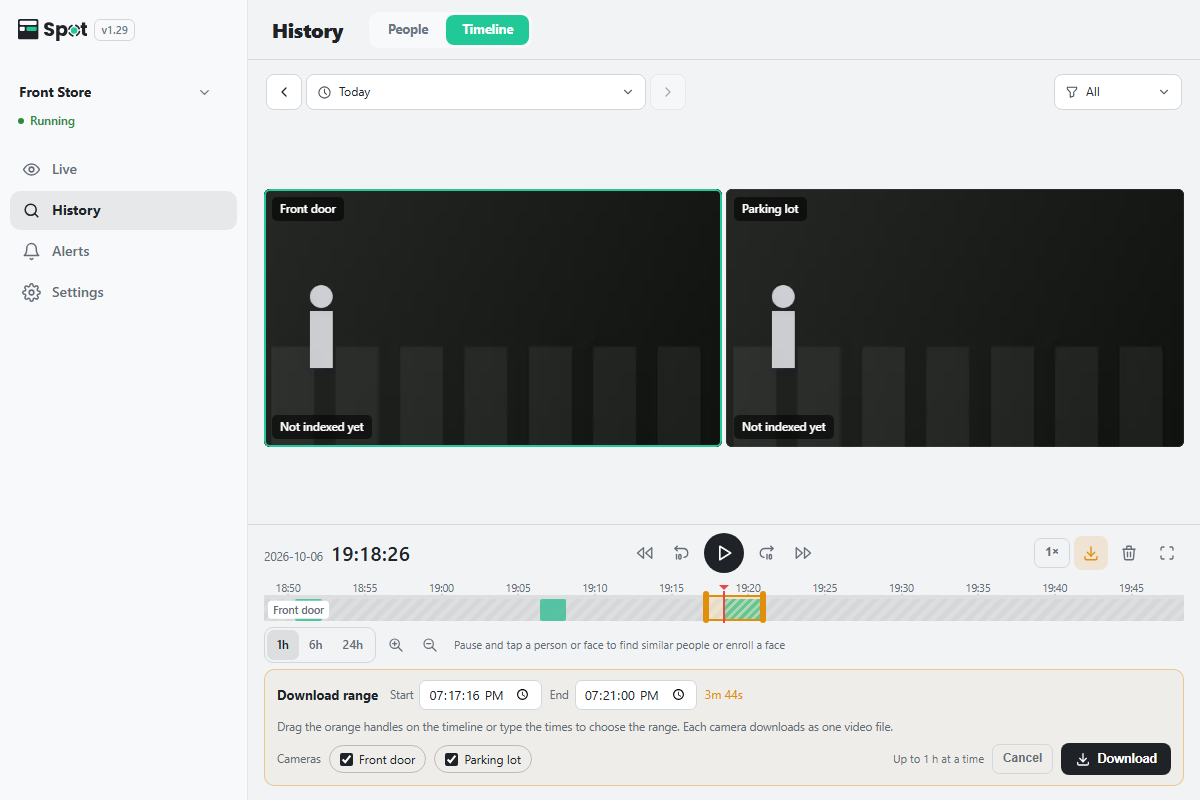
- Click the download icon (Download range) on the right of the playback row. The Download range panel opens below the time bar, and two orange handles appear on the bar. At first, the recording under the red line plus 10 seconds on either side is selected.
- Drag the handles, or type times down to the second under Start and End. The selected length is shown alongside. On a phone, Start here and End here also work. Up to 1 hour can be selected at a time.
- Under Cameras, check the cameras to download. At first, the enlarged camera, the camera shown on a phone, or the cameras on the current page are checked.
- Click Download. One MP4 file per camera is downloaded, one after another. Downloading i/n · n% is shown meanwhile, and Cancel stops it.
Done when a video file has been saved for each camera. Gaps without recordings are left out of the files, and recordings still in progress are not included.
Delete a range
- Click the trash icon (Delete range) on the right of the playback row. The Delete range panel opens. The range and cameras are chosen the same way as for downloading.
- Set the range and, under Cameras, check the cameras to delete from.
- Click Delete. The Delete the n selected events? dialog opens.
- Click Delete in the dialog.
Done when the recordings in that range disappear from the time bar.
Caution
Any recording that overlaps the range, even partly, is deleted entirely; it is not trimmed to the
range. Deleted recordings cannot be restored, and recordings still in progress are not deleted.
Download messages and supported versions
- The [ and ] keys set the start and end of the range to the current position.
- A message appears below only when a camera could not be downloaded. No recording: camera name means there was no recording in the range, and Failed: camera name means the download failed. If Too large to download (choose a shorter range): camera name appears, shorten the range and download again.
- Download range and Delete range appear on device software 1.29.3 or later. On earlier versions, delete recordings from the Scenes list (see Viewing and Playing Recordings).