Registering a Vehicle
Register vehicles so alerts can tell registered and unregistered vehicles apart, and to be alerted when a specific vehicle is detected. Registration applies immediately and does not restart the device.
Registering by plate number
- Click the Registry tab. If face recognition is also on, select Vehicles next to the title.
- Enter the plate number in Plate number and an easy-to-recognize name in Name (optional).
- Click Add.
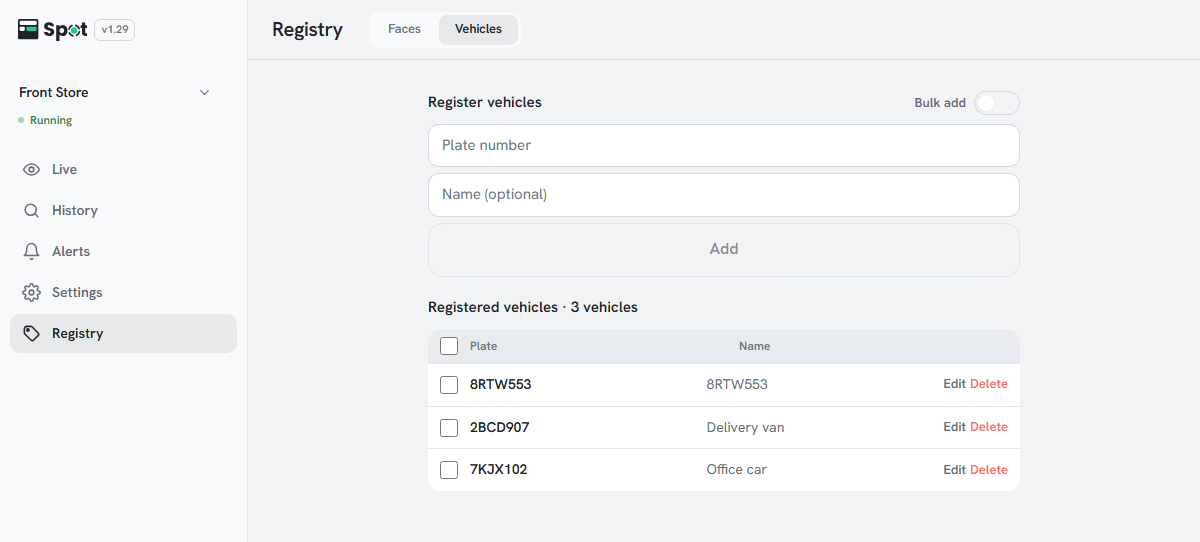
The vehicle is registered when its plate appears in the Registered vehicles list. The vehicle can now be chosen for Specific vehicle detected in an alert.
Registering several vehicles at once
- Turn on the Bulk add switch to the right of the Register vehicles title.
- Enter one vehicle per line in the text box. Put the name after the plate number, separated by a comma (for example, ABC1234,Company car). A plate number without a name also works.
- Click Add n. Plates that are already registered, and plates repeated within the input, are skipped.
Registering from history
On a card in History > Vehicles, click the bookmark icon (Register this vehicle) next to the plate, enter a vehicle name, and click Save. The icon is shown only on vehicles that have a plate and are not registered yet.
Note
If you leave the name empty on the Registry tab, the plate number is saved as the name. The name
is shown in registered vehicle alerts and specific vehicle alerts.
Managing and deleting registered vehicles
- The list is sorted by name (or by plate number when there is no name). With 8 or more vehicles, a Search plate or name box appears above the list.
- Click Edit to change that entry's plate number and name. Press Enter to save or Esc to cancel.
- Click Delete to open a confirmation dialog. A deleted plate is detected as an unregistered vehicle from then on; saved records and video are kept.
- When several vehicles are checked, Delete selected (n) appears to the right of the list title so you can delete them at once.
- Spaces and hyphens in a plate number are removed automatically when it is registered.
- When the app is not connected to the device, Connect to the device to manage registered vehicles. is shown.