Viewing Vehicle Cards
History > Vehicles shows the vehicles that appeared in the period as one card per plate. Vehicles with the same plate are grouped into one card.
- On the History tab, click Vehicles next to the title.
- Click the period above the list and choose the period to view.
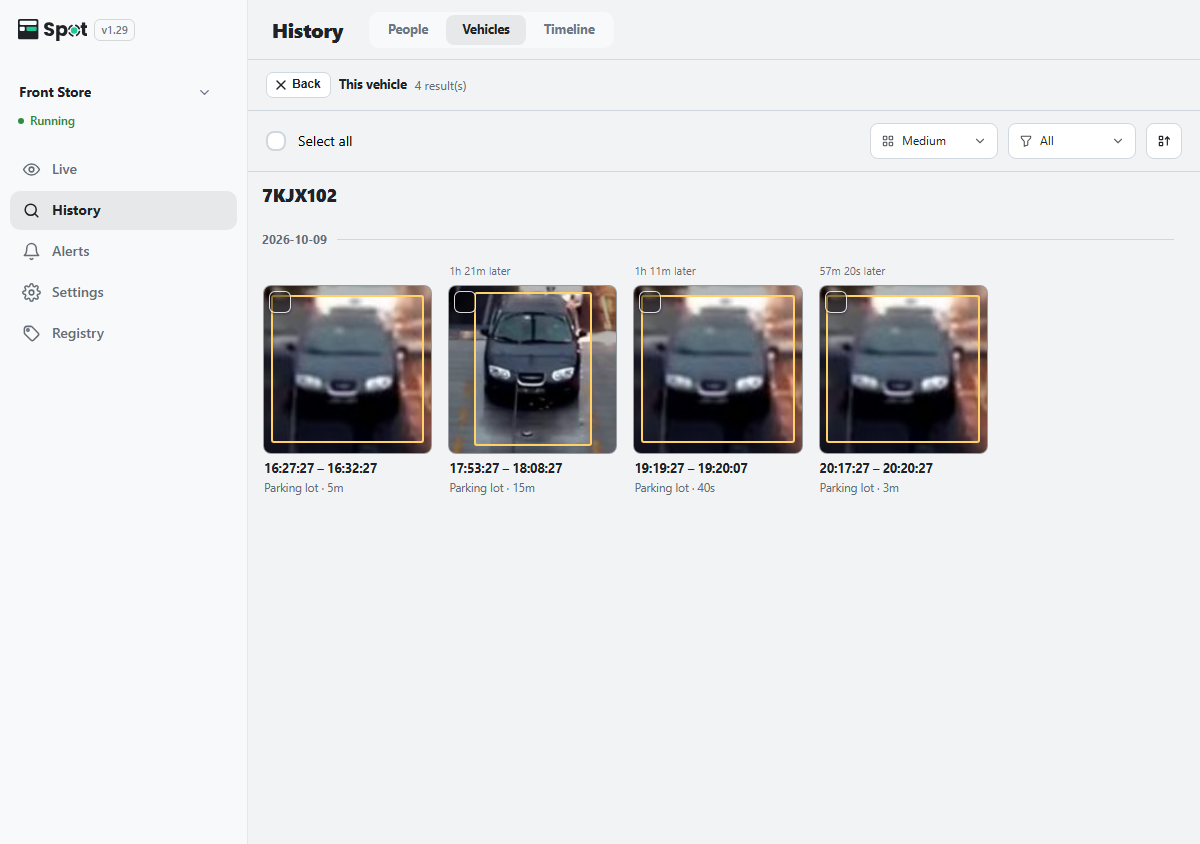
- Click the photo on a card. This vehicle opens, listing the stays of that vehicle in time order. Each tile shows the plate read during that stay (or Plate unconfirmed if it could not be read), so a different vehicle mixed in is easy to spot. Click a tile to play the video of that stay.
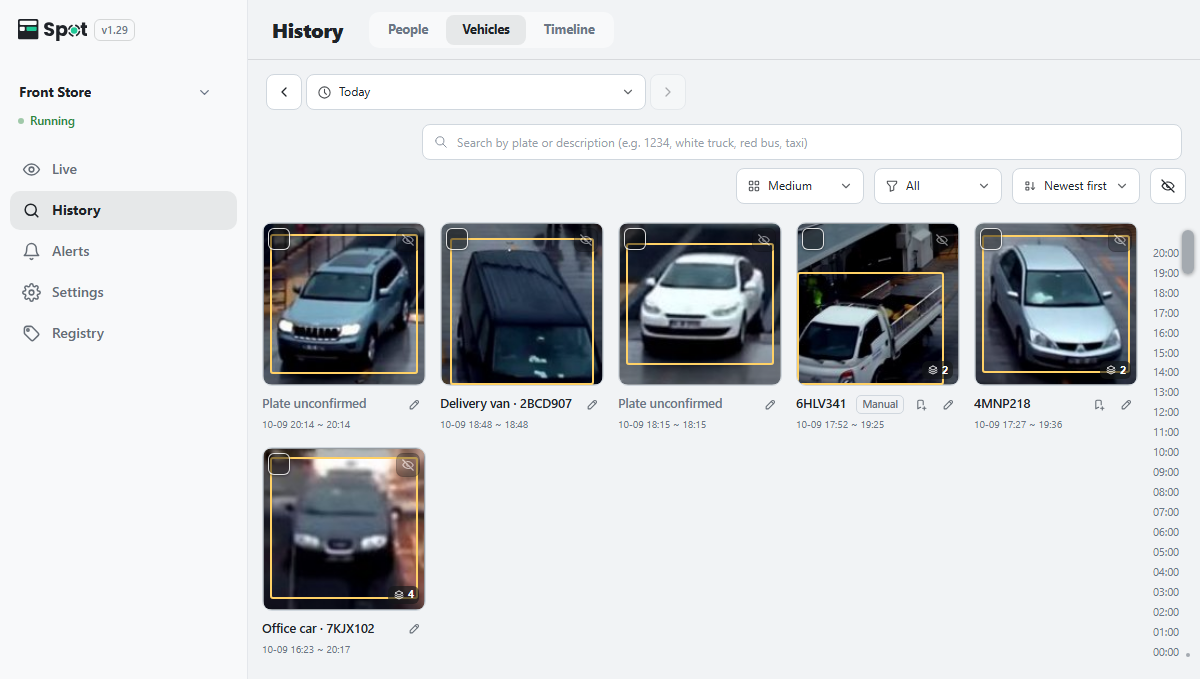
| Shown below the card | Meaning |
|---|---|
| Plate number | The plate number Spot read. |
| Name · plate number | A registered vehicle. |
| Plate unconfirmed | A vehicle whose plate could not be read. Each appearance is shown as a separate card. |
| Manual | A plate number entered by a user. |
Finding by plate
In the Search by plate or description (e.g. 1234, white truck, red bus, taxi) box above the list, enter part of a plate number or a description of the vehicle and press Enter. Words containing digits are matched against plate numbers, and the rest against the vehicle description. Click the clear button to return to the full list.
Correcting plate numbers
- Enter a plate: click the pencil icon (Enter plate) on a card, type the plate number, and click Save. If a card with the same plate already exists, the two are merged. Saving the field empty removes the plate.
- Merge cards: if one vehicle is split across cards, check the box at the top left of two or more cards and click Merge. The steps are the same as in Merging cards of the same person. A card with a plate becomes the Base card; when cards with different plates are merged, only the base card's plate is kept. Merging cannot be undone.
- Remove another vehicle: open the card and click the remove-vehicle icon (Not this vehicle) on the tile of the other vehicle to take that tile out of the card.
- Hide: if something that is not a vehicle appears as a card, use the hide icon at the card's top right to hide it.
Picking a vehicle in the video to find it
Pause the video on the timeline or in the scene view and click a vehicle box; the vehicle is selected in the scene view. Click Find by appearance to find vehicles of a similar type, color, and shape. This works even when the plate is not visible.
Sorting, new vehicles, and indexing settings
- The sort menu offers Newest first (default), Oldest first, Most seen, and Least seen.
- Vehicles that appear while you are scrolling are added to the list when you click n new vehicles at the top.
- If vehicles captured small on screen do not become cards, lower Minimum vehicle size in Indexing Settings. Similar-vehicle search is tuned with Same-vehicle threshold.
- Vehicle boxes are shown only while vehicle recognition is on.