Follow the Setup Guide
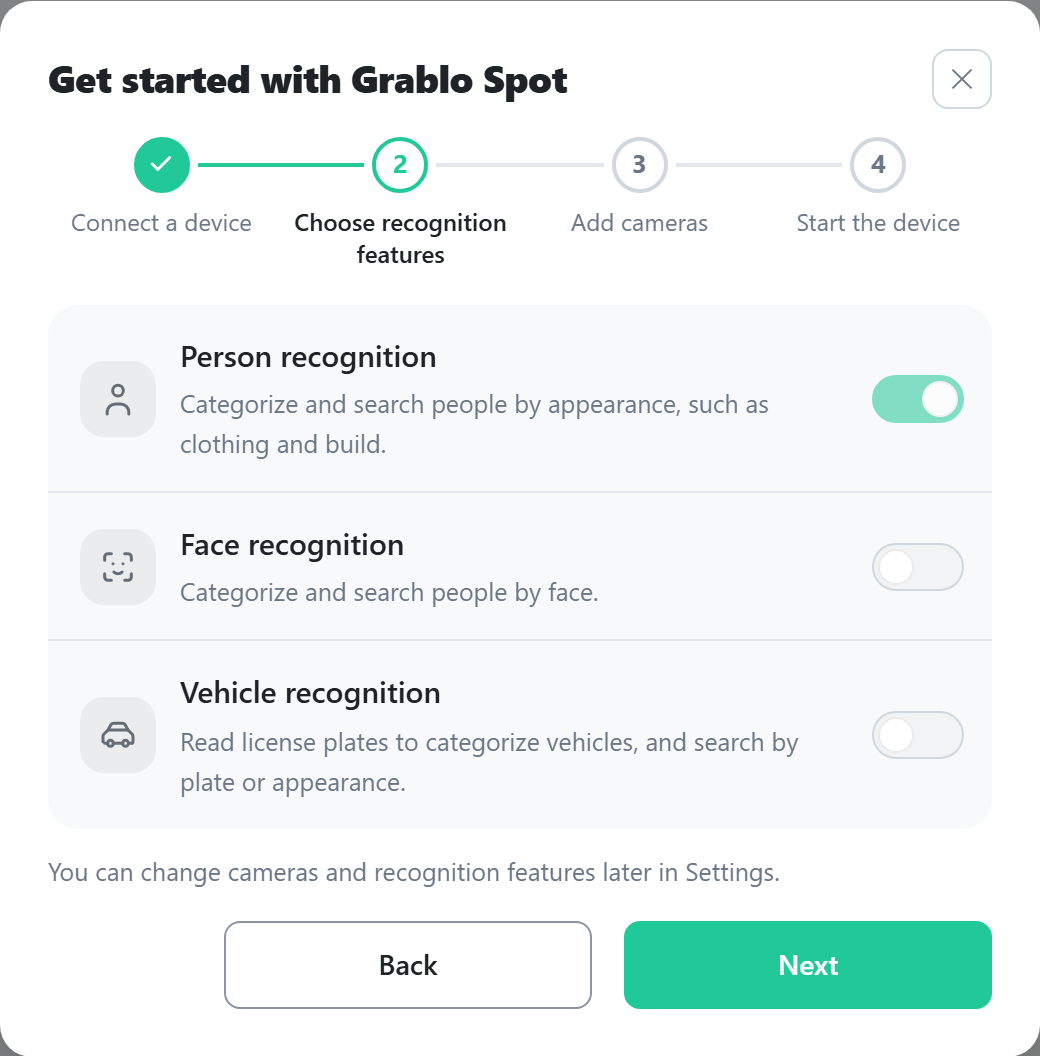
When you first open a place that has no cameras, the Get started with Grablo Spot window opens. The steps are shown at the top. Finish a step, then click Next. Click Back to return to the previous step.
- In the Connect a device step, click Connect device to connect the device. If the device is already connected, The device is connected. appears. You can go to the next step only after the device is connected. See Connecting the Device.
- In the Choose recognition features step, turn on the features you want. At least one of Person recognition, Face recognition, and Vehicle recognition must stay on. Face recognition and vehicle recognition turn on only after you click Agree and turn on in the window that opens.
- In the Add cameras step, enter the camera details and click Add camera. The camera appears in the list. To add another camera, click Add a camera; to continue, click Next. For the fields, see Adding a Camera.
- In the Start the device step, click Save and start. Your choices and cameras are saved, and the device starts. If there is nothing to save, the button reads Start.
When Detection and recording have started. appears, click OK to close the window.
Closing or reopening the setup guide
- You can close the guide at any time with the close icon at the top right (Back on a phone). Once closed, it does not open again on its own for that place.
- If you close it without saving, your choices and added cameras stay unsaved. Click Save at the bottom of the screen to save them.
- To reopen it, click Show setup guide on the Live tab of a place with no cameras.
- You can also do each step from the Settings tab without the guide.