Changing or Resetting the Password
Changing the password
- In the account menu, click Profile. The account menu is at the bottom left on a desktop and under Settings > Account on a phone.
- Enter the Current password, New password, and Confirm password, then click Change password.
After you change the password, other browsers and devices must sign in again. The browser you used stays signed in.
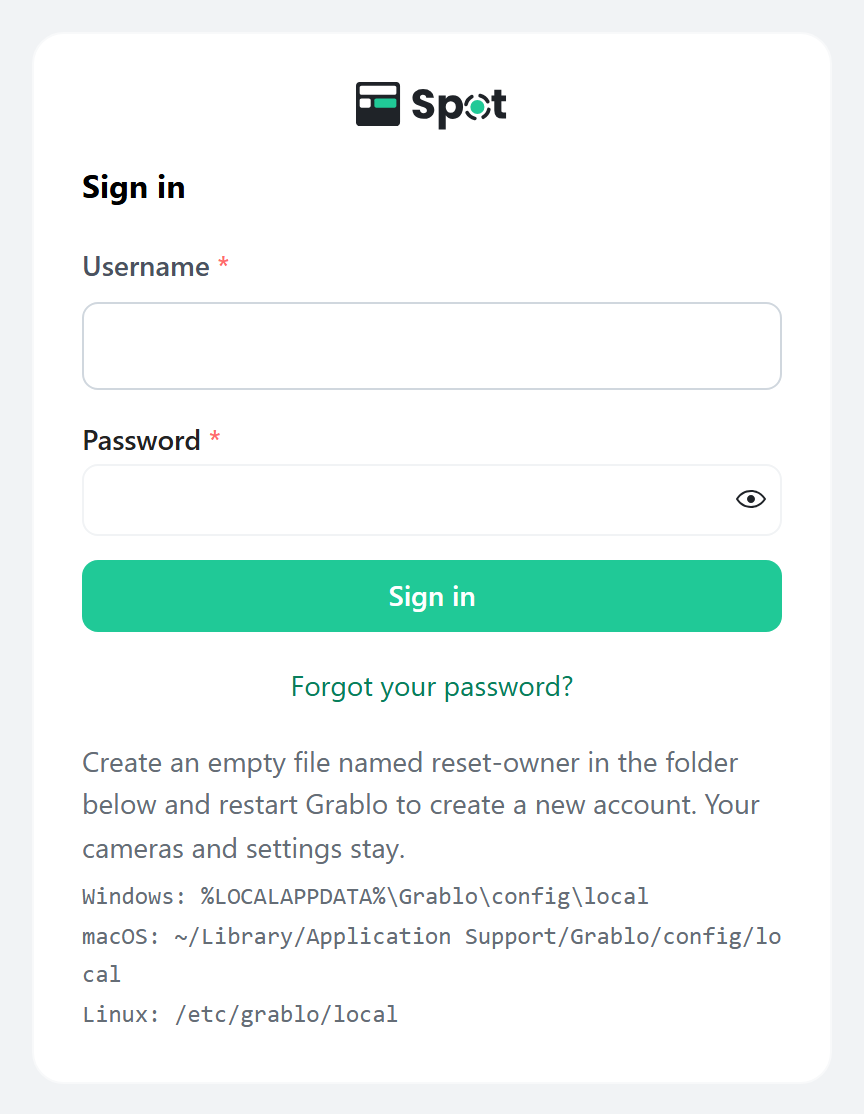
Resetting a forgotten password
-
In the device's settings folder, create an empty file named
reset-ownerwith no file extension. You can run one of these commands:- Windows (Command Prompt):
type nul > "%LOCALAPPDATA%\Grablo\config\local\reset-owner" - macOS (Terminal):
touch ~/Library/Application\ Support/Grablo/config/local/reset-owner - Linux:
sudo touch /etc/grablo/local/reset-owner
- Windows (Command Prompt):
-
Restart Grablo Spot.
On Windows, click Exit in the Grablo icon menu in the notification area, then open Grablo Spot from the Start menu. On macOS, click the Grablo icon in the menu bar, click Quit, then open Grablo Spot from the Applications folder. On Linux, run
sudo systemctl restart grablo. - Open the local screen and create a new local account.
For Docker, run docker exec grablo touch /etc/grablo/local/reset-owner, then restart it with docker restart grablo.
Only the local account is removed. Your cameras, settings, and recordings are kept. Clicking Forgot your password? on the sign-in screen shows the same steps.