Watching from Anywhere (Remote Access)
Add the device to your Grablo account to watch video and change settings from anywhere, in a browser at spot.grablo.co or in the Grablo app on your phone. You don't need port forwarding or a static IP address. The device must stay connected to the internet.
Before you begin
- Create a Grablo account and sign in at spot.grablo.co or in the Grablo app.
- To add the device from a different network, have its Device ID ready. The Device ID is a 16-character code made up of the digits 0 to 9 and the letters a to f.
- Windows: Right-click the Grablo icon in the notification area and click About.
- macOS: Click the Grablo icon in the menu bar, then click About Grablo Spot.
- Linux: The installer prints it when installation finishes. You can also run
systemctl status grablo.
Adding the device
- Open the place you want to connect the device to.
- Click Connect device in the setup guide or on the Live tab. Device Manager opens. If no device is registered yet, the Add Device screen opens directly.
- Select the device. If you're on the same network as the device, it appears under Devices on Local Network, and the first device found is selected with its Name and Device ID filled in. If you're on a different network, enter a Name and the Device ID.
- Click Add Device. You return to the list with the new device selected.
- Click Connect.
After the device connects, the app shows the settings stored on it. A device you've added connects automatically whenever you open the app, even from another network. The local screen and remote access use the same settings stored on the device, so changes made in one appear in the other. If the local screen is already open, reload it to see the changes.
When the device has settings for another place
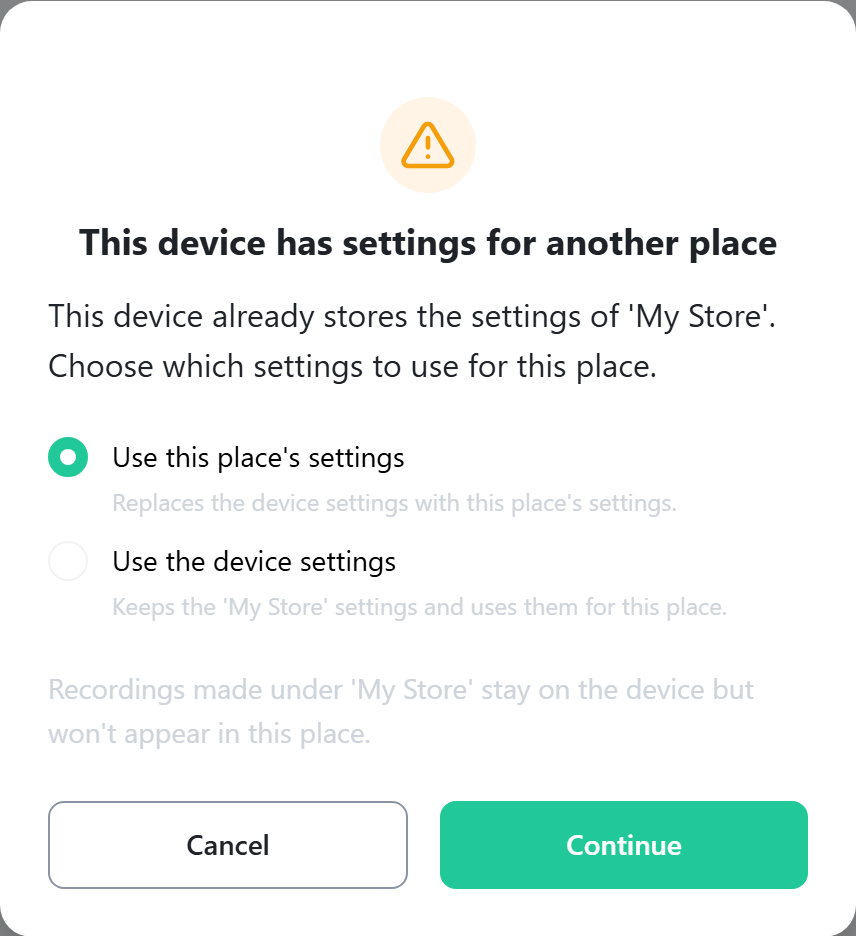
If you connect a device that was set up on the local screen to a different place on the web, the This device has settings for another place window appears. A device can store settings for only one place, so you need to choose which settings this place uses.
| Option | What happens |
|---|---|
| Use this place's settings | Replaces the device settings with the web place's settings. |
| Use the device settings | Keeps the cameras and actions you set up on the local screen and uses them for this place. After this, restart the device once so it runs with those settings. |
| Cancel | Changes nothing. You're asked again the next time the device connects. |
Choose an option and click Continue. The page reloads.
Offline devices, the relay server, and Multi-site view
- With remote access, settings are read from the device. If the device is off or offline, a notice appears at the top of the screen and you can't change settings. The notice disappears when the device reconnects.
- On most home and office networks, the app connects to the device directly. If the network blocks direct connections, video passes through the relay server, and that data counts toward your account's relay server allowance. You can see the connection type in Settings > Device.
- Multi-site view shows cameras from several places on one screen. It appears at the top of the place menu when your account has at least one device running device software 2.0 or later.