Creating a Local Account
After installation, the first time you open the local screen, the Create account screen appears. Each device has one local account. It exists only on that device and is separate from your Grablo account.
- Enter the Username, Password, and Confirm password. The password must be at least 8 characters.
- Click Create account.
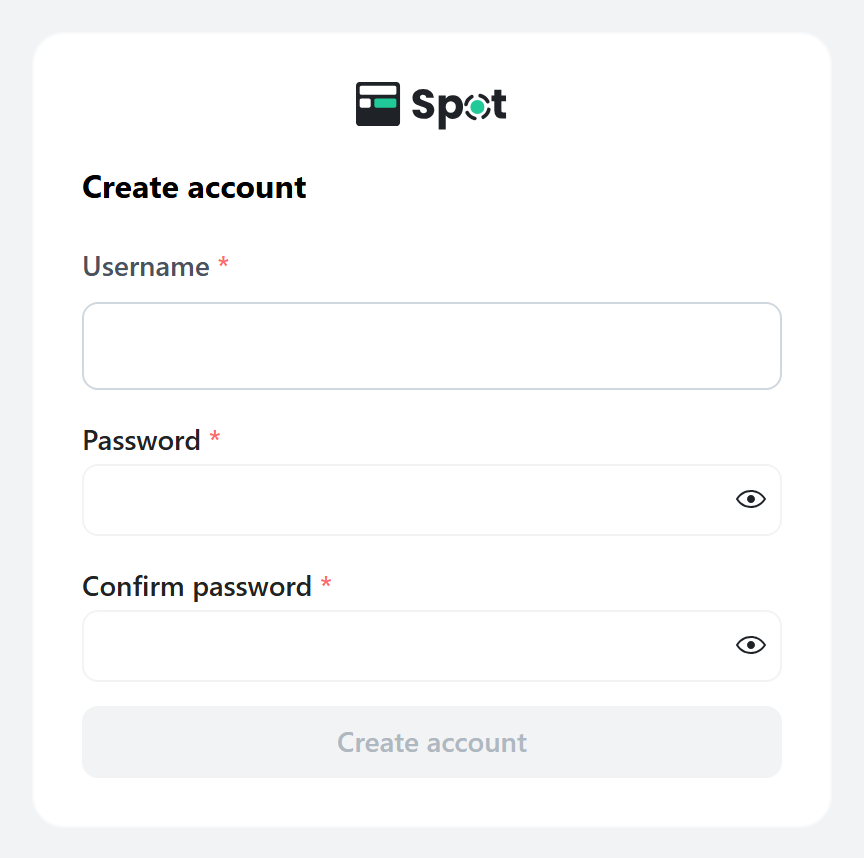
After you create the account, Spot opens. Follow the setup guide to choose recognition features and add cameras (see Follow the Setup Guide). On the local screen, the setup guide doesn't include the Connect a device step.
From then on, sign in on the Sign in screen with your username and password. Each browser keeps you signed in.
Opening it from another device the first time (setup code)
When you open it on the PC where Spot is installed, the setup code is passed automatically and no field appears. If you open it for the first time from another PC or phone, or by typing the address, a Setup code field also appears. Find the number in the file shown on the screen.
- Windows:
%LOCALAPPDATA%\Grablo\config\local\setup_code.txt - macOS:
~/Library/Application Support/Grablo/config/local/setup_code.txt - Linux:
sudo cat /etc/grablo/local/setup_code.txt - Home Assistant add-on: the Log tab, the first time the add-on starts
- Docker:
docker exec grablo cat /etc/grablo/local/setup_code.txt