Turning On Remote Access from the Local Screen
Connect your Grablo account from the local screen to watch video and change settings from anywhere, in a browser at spot.grablo.co or in the Grablo app on your phone. You don't need port forwarding, a static IP address, or the Device ID.
Before you begin
- The device must be connected to the internet, and stay connected while you use remote access.
- If you don't have a Grablo account, you can create one in the window that opens while you connect.
- In the account menu, click Remote access. The account menu is at the bottom left on a desktop and under Settings > Account on a phone.
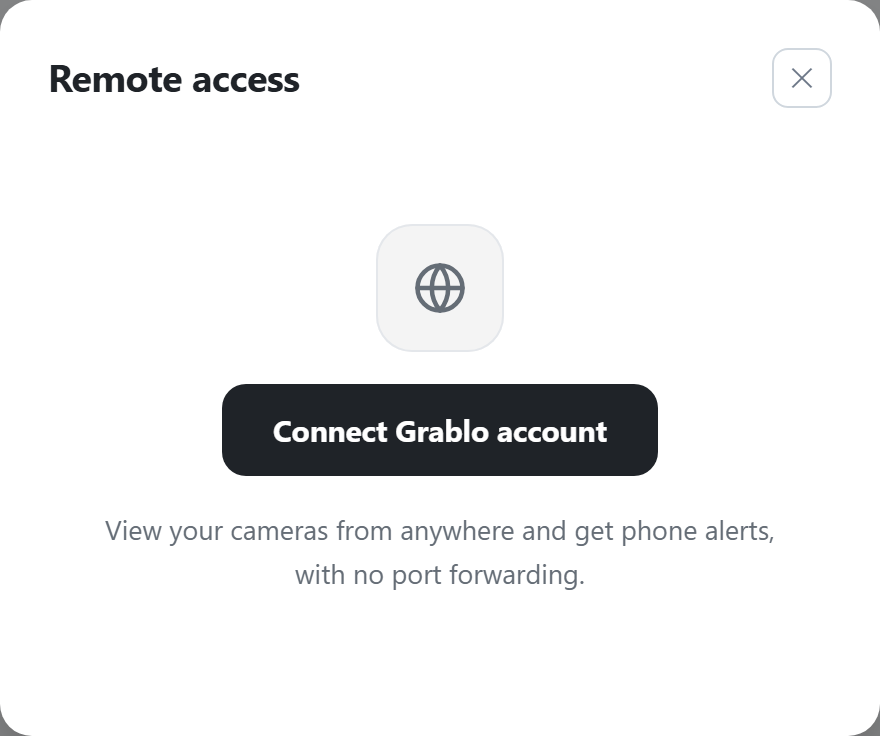
- Click Connect Grablo account. A small window opens, and the Remote access window shows Finish signing in in the window that opened.
- In the small window, sign in with your Grablo account.
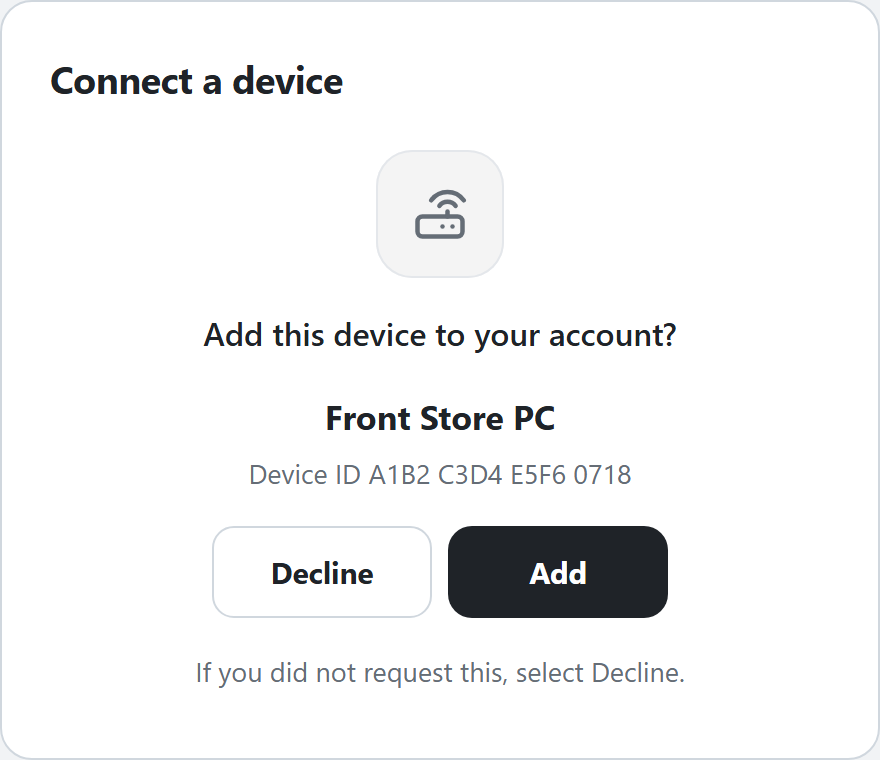
- When Add this device to your account? appears, check the device name and Device ID, then click Add. If you did not start this connection yourself, click Decline.
- When Device added appears, click Close window. While the device's place is being added to your account, Importing settings… appears.
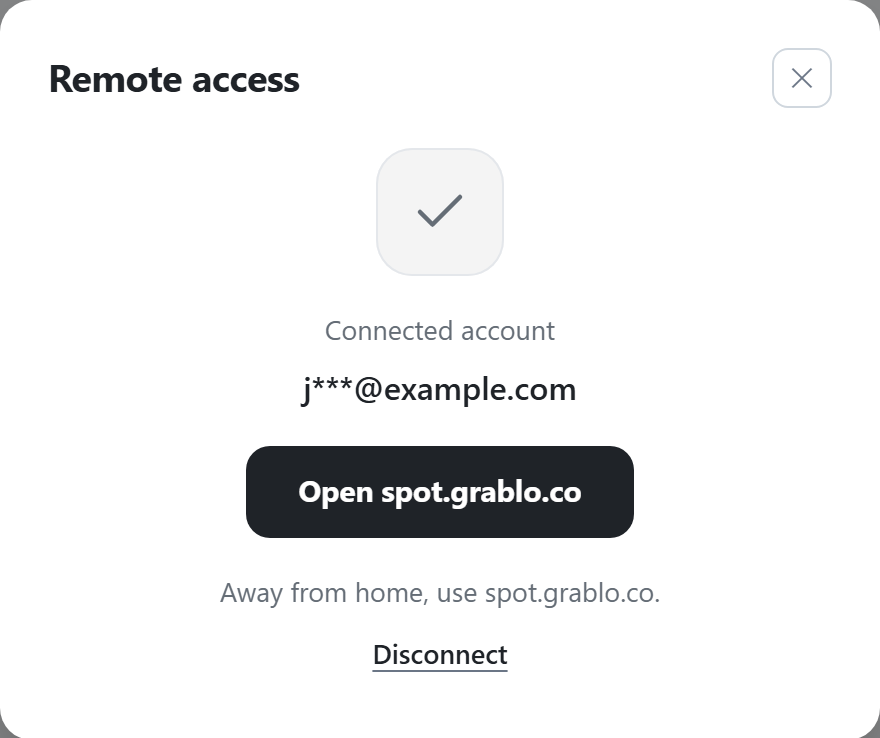
You're done when the Remote access window shows Connected account and your account's email address. In the account menu, On appears next to Remote access, and on a desktop the connected account also appears under your username at the bottom left. Away from the device, sign in at spot.grablo.co or in the Grablo app with the same account to see this device's place.
Once connected, you can add a Phone notification action on the local screen too, and Multi-site view in the place menu opens at spot.grablo.co.
Connecting from another device with a code
To sign in on a different device (such as your phone) from the one showing the local screen, use a code.
- Click Connect Grablo account, then click Use another device. The address to go to (spot.grablo.co/link) and an 8-character code appear.
- On the other device, open spot.grablo.co/link in a browser and sign in with your Grablo account.
- When Enter the code shown on your device. appears, enter the code and click Continue.
- Click Add.
Disconnecting
- In the Remote access window, click Disconnect.
- When Are you sure you want to disconnect? appears, click Disconnect.
The device is removed from the connected account, so you can no longer watch it from anywhere or add phone notifications on the local screen. Cameras and recordings stay on the device, and you can keep using the local screen. If the device isn't connected to the internet, Check your internet connection and try again. appears and the connection is kept.
If the connection fails
| Message | What to do |
|---|---|
| Open the sign-in window to finish connecting | The browser blocked the small window. Click Open sign-in window. |
| Finish signing in in the window that opened | If you closed the small window or can't find it, click Reopen window. To stop, click Cancel. |
| This device is not connected to the internet. | Check the device's internet connection and try again. You can keep using the local screen. |
| This device is registered to another account. Remove it from that account and try again. | The device wasn't added because its place belongs to another Grablo account. The small window also shows This device is registered to another account. Remove the device from that account, then connect again. |
| The connection request was declined. | Decline was clicked in the small window. To connect, click Connect Grablo account again. |
| The code has expired. Try again. | The device wasn't added in time. Click Connect Grablo account again. |
| Could not connect. Try again. | Wait a moment, then click Connect Grablo account again. |
If, after connecting, clicking Phone notification shows Phone alerts are unavailable because this device's place is not in the connected account., sign in at spot.grablo.co with the same account and connect this device (see Adding the Device at spot.grablo.co).
Devices first added at spot.grablo.co
A device you added by Device ID at spot.grablo.co or in the Grablo app also shows as On under Remote access on the local screen once you open it remotely with that account. If the device was added to several accounts, the account that most recently opened it remotely is shown. This applies to device software 2.1.2 or later.